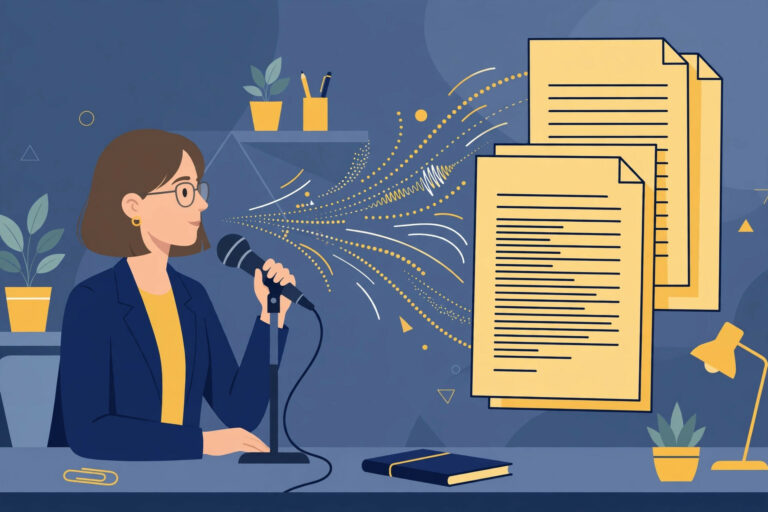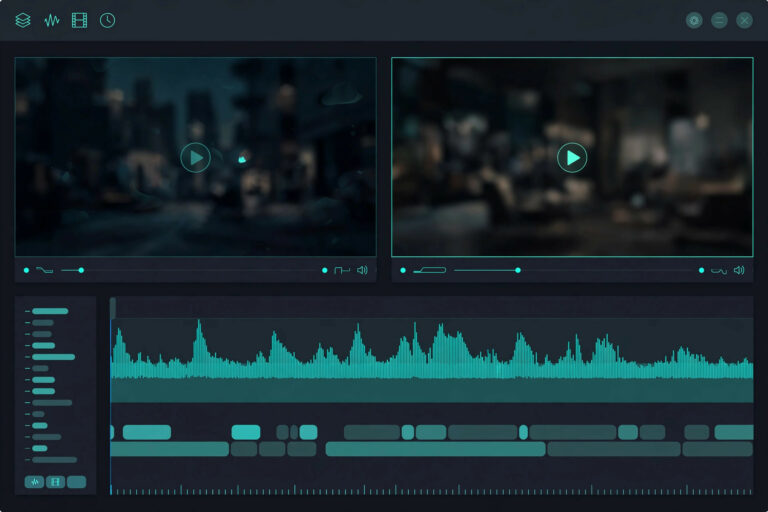
Direct answer: In short, learning how to transcribe a YouTube Video to Text takes just a few minutes once you follow the right steps. This guide walks you through each one.
Key takeaways:
- Quick Steps to Transcribe a YouTube Video: Get a full text transcript of any YouTube video:
- Why Transcribe YouTube Videos?: While YouTube has not confirmed that transcripts directly influence ranking, the secondary effects are well documented.
- Tips for Best Results: While YouTube has not confirmed that transcripts directly influence ranking, the secondary effects are well documented.
- Transcripts and the YouTube Algorithm: While YouTube has not confirmed that transcripts directly influence ranking, the secondary effects are well documented.
- When in doubt, test with your own audio before committing to a paid plan.
YouTube is the world’s second-largest search engine, but its search runs on text, titles, descriptions, and captions, not on the spoken words inside your videos. Every tutorial, review, and vlog you publish contains valuable spoken content that search engines cannot hear. Transcription bridges that gap.
Whether you are a creator wanting better captions, a student mining a lecture video for notes, or a researcher quoting a documentary, converting YouTube video audio to text unlocks the content inside. This guide shows the free method that works for any video you can download or record audio from.
Quick Steps to Transcribe a YouTube Video
Get a full text transcript of any YouTube video:
- Get the video audio, Download the video (if it is yours) or record the audio portion using any screen recorder.
- Open the transcription tool, Go to TranscriptionAid in your browser. Free with no account needed.
- Upload the audio or video file, MP4 video files and extracted MP3 audio both work.
- Generate the transcript, Start transcription to get timestamped text of everything said in the video.
- Use it for captions, Convert the transcript to SRT format and upload it to YouTube Studio for accurate closed captions.
- Repurpose the content, Turn the transcript into a blog post, Twitter thread, or newsletter issue.
Why Transcribe YouTube Videos?
- Better captions, more views: Accurate human-reviewed captions outperform auto-captions and keep viewers watching longer.
- SEO for video: A transcript published alongside an embedded video gives search engines text to index.
- Content repurposing: One video becomes a blog post, quote graphics, and social clips, multiplying its reach.
- Research and study: Quote precisely, cite timestamps, and search within long videos instead of rewatching.
Tips for Best Results
- Start with clean audio: Videos with clear narration and minimal background music transcribe most accurately.
- Review auto-generated sections: Fast speech, accents, and technical terms deserve a careful proofread.
- Format for captions: Break long sentences into shorter caption lines when converting to SRT for readability.
- Keep the timestamps: They are essential for building YouTube chapters and letting viewers jump to sections.
Transcripts and the YouTube Algorithm
While YouTube has not confirmed that transcripts directly influence ranking, the secondary effects are well documented. Accurate captions increase watch time, viewers stay longer when they can follow along in noisy environments or at high playback speeds. Higher retention signals quality to the algorithm, which drives recommendations.
Transcripts also enable multi-language expansion. Once you have an accurate English transcript, machine translation produces reasonable subtitles in other languages, opening your content to global audiences with minimal effort.
For educational channels, transcripts double as study guides. Viewers frequently search for the text version of tutorials, and channels that provide them earn loyalty and return visits.
Common YouTube Transcription Challenges
Copyright strikes on downloads: Downloading videos you do not own may violate YouTube’s terms and copyright law. Only download content you created or have explicit rights to use.
Music-heavy content: Vlogs and montages with continuous background music challenge transcription accuracy. Videos where speech is secondary to visuals may not be worth transcribing at all.
Multi-language videos: Code-switching creators who blend languages need careful review around every language transition.
Live stream archives: Unedited stream VODs contain hours of filler. Consider transcribing only highlighted segments rather than entire streams.
Frequently Asked Questions
Can I transcribe someone else’s YouTube video?
You can transcribe audio you have lawful access to. Respect copyright, transcripts of others’ videos should be for personal study, not republication.
How do I turn the transcript into YouTube captions?
Export as SRT format and upload it in YouTube Studio under Subtitles. Our chapter guide shows how to go further with timestamps.
Does this work for long videos?
Yes. Multi-hour videos can be transcribed, though very long files process faster when split into parts.
Is this better than YouTube’s auto-captions?
YouTube’s automatic captions are a starting point, but a reviewed transcript is significantly more accurate, especially for technical content.
Will adding transcripts help my videos rank higher?
Transcripts support ranking indirectly: they enable accurate captions (which boost watch time) and let you publish companion blog content that ranks in Google search and drives viewers to the video.
Can I transcribe YouTube Live streams?
Yes, once the stream archive is available. Download or capture the stream audio, then transcribe it like any other video file.
Video creators who systematize transcription gain a compounding advantage. Each video’s transcript feeds the next video’s research, builds an ever-growing text library, and creates multiple discovery paths for new viewers. Start with your most popular video, transcribe it today, and you will wonder why you waited.
Start Transcribing Free
Ready to convert your audio to text? Try the free transcription tool now, no signup, no installation, just upload and go.
Related Guides
- create YouTube chapters from a transcript
- add captions to YouTube Shorts
- YouTube’s official captions guide
Sources and further reading: YouTube Help