Direct answer: A YouTube transcript downloader is a tool that grabs the captions from a video and saves them as a text file. Most are free browser extensions or websites. They work only when the video has captions, either auto-generated or uploaded by the creator.
Key Takeaways:
- Transcript downloaders pull existing captions from a video, they do not create new transcripts from scratch.
- A downloader only works if the video already has captions turned on.
- Free websites are the fastest option, browser extensions are the most convenient.
- Stick to well-reviewed tools and never enter your Google password into a third-party site.
- For videos without captions, use a transcription service instead, youtube transcription has the full walkthrough.
Table of Contents
- What a Transcript Downloader Actually Does
- Two Main Types of Downloader Tools
- How to Use a Free Download Website
- How Browser Extensions Work
- Tool Comparison
- The Built-In Option Most People Miss
- Safety Notes for Third-Party Tools
- What to Do With a Downloaded Transcript
- When a Downloader Is Not Enough
- Red Flags to Avoid
- Frequently Asked Questions
What a Transcript Downloader Actually Does
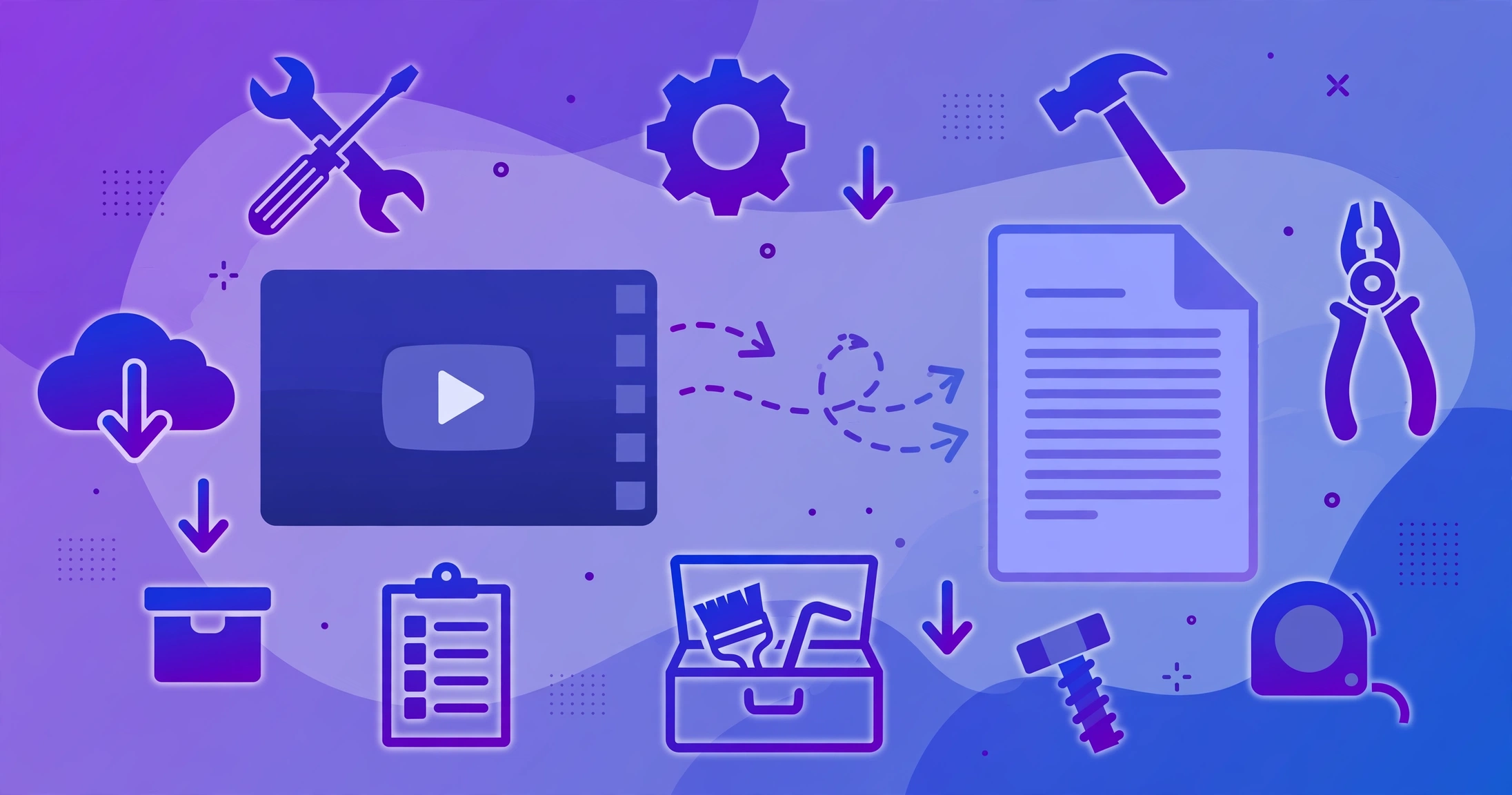
Every YouTube video with captions has a text track hidden inside the page. A transcript downloader reads that track and turns it into a file you can save, copy, or print. It takes seconds.
This is different from transcription. Transcription listens to audio and writes down what it hears. A downloader just copies captions that already exist. If the video has no captions, the downloader has nothing to grab.
Most downloaders save files as plain text or SRT. Plain text is fine for reading. SRT keeps the timestamps, which helps if you are editing video or studying.
Two Main Types of Downloader Tools
Downloaders come in two flavors. Free websites and browser extensions. Both do the same job. The difference is convenience versus effort.
A website asks you to paste the video link. It fetches the captions and shows a download button. No install needed. You can use it on any computer, even one that is not yours.
A browser extension adds a button right on the YouTube page. You are watching a video, you click the button, and the transcript downloads. It is faster when you download transcripts often.
How to Use a Free Download Website
These sites all work the same way. Here is the typical flow.
First, open the YouTube video in another tab and copy its link. Second, go to the transcript website and paste the link into the box. Third, press the button to fetch. The site shows the captions on screen. Fourth, choose your format and download.
The whole thing takes under a minute. If the site says no captions found, the video simply has none. No downloader can fix that.
How Browser Extensions Work
You install the extension from your browser’s store, then visit any YouTube video. A new button appears near the player or in the toolbar. Click it and pick a format.
Some extensions show the transcript in a side panel while the video plays. You can click any line to jump to that moment. This is handy for research or studying.
Extensions stay in your browser, so they are always one click away. The trade-off is that you trust the extension with some access to the pages you visit.
Tool Comparison
| Tool type | Pros | Cons |
|---|---|---|
| Free website | No install, works on any device, fast for one-off downloads | Paste the link every time, some sites show heavy ads |
| Browser extension | One-click download, transcript panel while watching | Needs install, only works in that browser, check permissions |
| Built-in YouTube option | No third party involved, always safe | Copy and paste only, no file download, desktop only |
The Built-In Option Most People Miss
YouTube has its own transcript viewer. On desktop, open a video, click the three dots under the player, and choose “Open transcript.” A panel appears with the full captions and timestamps.
You cannot download from this panel directly. But you can select the text, copy it, and paste it into a document. It is the safest method because no third-party tool touches anything.
If you need proper files or work on mobile, the methods in youtube transcription cover every device.
Safety Notes for Third-Party Tools
Most transcript tools are harmless. Still, a few simple rules keep you safe.
Never enter your Google password or YouTube login on a transcript website. A real downloader does not need your account. It only needs the public video link.
Check reviews before installing an extension. Look at how many users it has and read recent reviews. Avoid extensions that ask for broad permissions like reading all your browsing data.
Watch out for sites covered in download buttons that are actually ads. The real button is usually near the transcript preview. If a site tries to install software, close it and use a different one.
Keep in mind that auto-generated captions have errors. A downloader copies those errors exactly. If you need a clean, accurate transcript, transcription beats downloading. See youtube transcription for the full comparison.
What to Do With a Downloaded Transcript
A transcript is more useful than it looks. Students use them to study videos without rewatching. You can search the text for a key term instead of scrubbing through the timeline.
Creators repurpose transcripts into blog posts, newsletters, or social captions. One video can become several pieces of content. The transcript is the raw material.
Researchers quote videos accurately with a transcript in hand. No more pausing and rewinding to catch a sentence. Copy the line, check the timestamp, and cite it.
Transcripts also help with accessibility. Some people prefer reading to listening. A text version opens the video up to a wider audience.
When a Downloader Is Not Enough
A downloader fails in three common cases. The video has no captions. The captions are in the wrong language. Or the auto-captions are so messy the text is useless.
In these cases you need real transcription, where software or a person listens to the audio and writes it out. That works on any video, captions or not.
Red Flags to Avoid
Some transcript sites are fine. A few are not. Here is what to watch for.
If a site asks you to disable your ad blocker and then floods the page with popups, leave. Legit tools show a few ads at most. Aggressive sites often bundle junk software with downloads.
Never download an EXE or installer from a transcript site. A transcript is a text file. It should download as TXT or SRT, nothing else. If your browser warns about the file, trust the warning.
Be wary of tools that ask for your email before showing the transcript. That is a lead capture trick. Plenty of tools show the transcript first with no signup.
Check the URL before pasting links into random sites. A misspelled domain that looks like a known tool is a classic phishing setup.
Frequently Asked Questions
Is it legal to download a YouTube transcript?
Downloading captions for personal use, like studying or note-taking, is generally fine. Republishing someone else’s transcript as your own content is not. Respect the creator’s work.
Why does the downloader say no captions found?
The video owner may have disabled captions, or the video is too new for auto-captions to finish. Some videos, like certain music uploads, never get captions. Try the built-in transcript viewer to confirm.
Do these tools work on private or unlisted videos?
Typically no. Downloaders can only read captions on videos they can access. Private videos need the owner’s permission. Unlisted videos sometimes work if you have the direct link.
Can I download transcripts on my phone?
Yes. Free websites work in any mobile browser. Paste the link, fetch, and download. Browser extensions usually need a desktop browser, so websites are the better mobile option.
What format should I choose, TXT or SRT?
Choose TXT for reading, quoting, or pasting into notes. Choose SRT if you need timestamps, for example when editing video or syncing subtitles.