Subtitle Edit is the free, open-source Swiss Army knife of subtitle work — and synchronization is its most-used feature. Whether your subtitles are off by a flat two seconds, drift progressively worse through a movie, or were made for a different frame rate entirely, Subtitle Edit has a dedicated tool for each case. This guide walks through all of them: the constant-offset quick fix, the full Visual Sync walkthrough, Point Sync for tricky drift, and frame-rate conversion.
If you’re new to Subtitle Edit, download it from its official site or GitHub releases page (Windows is the native platform; macOS and Linux users can run it via compatibility layers or use the newer cross-platform builds). Open your subtitle file with File > Open (Subtitle Edit reads 200+ subtitle formats).
Table of Contents
Step 0: Diagnose Your Sync Problem
Thirty seconds of diagnosis saves you from using the wrong tool. Play the video with the subtitles and watch a dialogue scene:
- Constant offset — every subtitle is early (or late) by the same amount, from the first minute to the last. Tool: Adjust all times.
- Progressive drift — subtitles start fine and get further off as the video plays (or vice versa). Classic sign of a frame-rate mismatch (e.g., 25 fps subtitles on a 23.976 fps video). Tool: Visual Sync or Change frame rate.
- Non-linear drift — sync wanders unpredictably; fine in some scenes, off in others. Tool: Point Sync with multiple anchor points.
- Total mismatch — wrong order, huge gaps, dialogue from scenes that don’t exist. The subtitle is for a different cut of the video. Tool: none — download a subtitle matched to your release.
Also confirm the basics first: the right subtitle track is selected, and the video itself plays smoothly (network stutter can mimic sync problems).
Quick Fix: Constant Offset With “Adjust All Times”
When every line is off by the same amount, this takes under a minute:
- Open the subtitle file in Subtitle Edit.
- Go to Synchronization > Adjust all times….
- Enter the offset: positive values shift all subtitles later (use when text appears too early), negative values shift them earlier (use when text appears too late). You can enter seconds or milliseconds.
- Choose whether to adjust all lines or only selected lines (all lines is the default and usually what you want).
- Click OK.
- File > Save (or Ctrl+S).
How do you find the offset value? Play the video in VLC, use its subtitle-delay keys to find the correction (VLC shows the millisecond value on screen), then enter that number here. If dialogue appears about 1.5 seconds early, enter -1500 ms. Sign conventions trip everyone up — if your first attempt makes it worse, undo (Ctrl+Z) and flip the sign.
Pro tip: after adjusting, spot-check three points — the beginning, middle, and end of the video. If all three line up, you’re done. If the error differs between them, you have drift, not a constant offset — move on to Visual Sync.
Full Walkthrough: Visual Sync (The Main Event)
Visual Sync (menu: Sync > Visual sync… — in newer versions, Synchronization > Visual sync…) fixes progressive drift by stretching or squeezing the entire subtitle timeline to fit the video. You give it two anchor points — one near the start, one near the end — and it linearly re-times everything between them. It’s the single most useful sync feature in the program.
Setup
- Put the video file and the subtitle file in the same folder (matching filenames help Subtitle Edit auto-load the video).
- Open the subtitle file in Subtitle Edit.
- If the video doesn’t load automatically in the preview player, open it via the video menu (Video > Open video file).
- Go to Synchronization > Visual sync….
The Visual Sync window
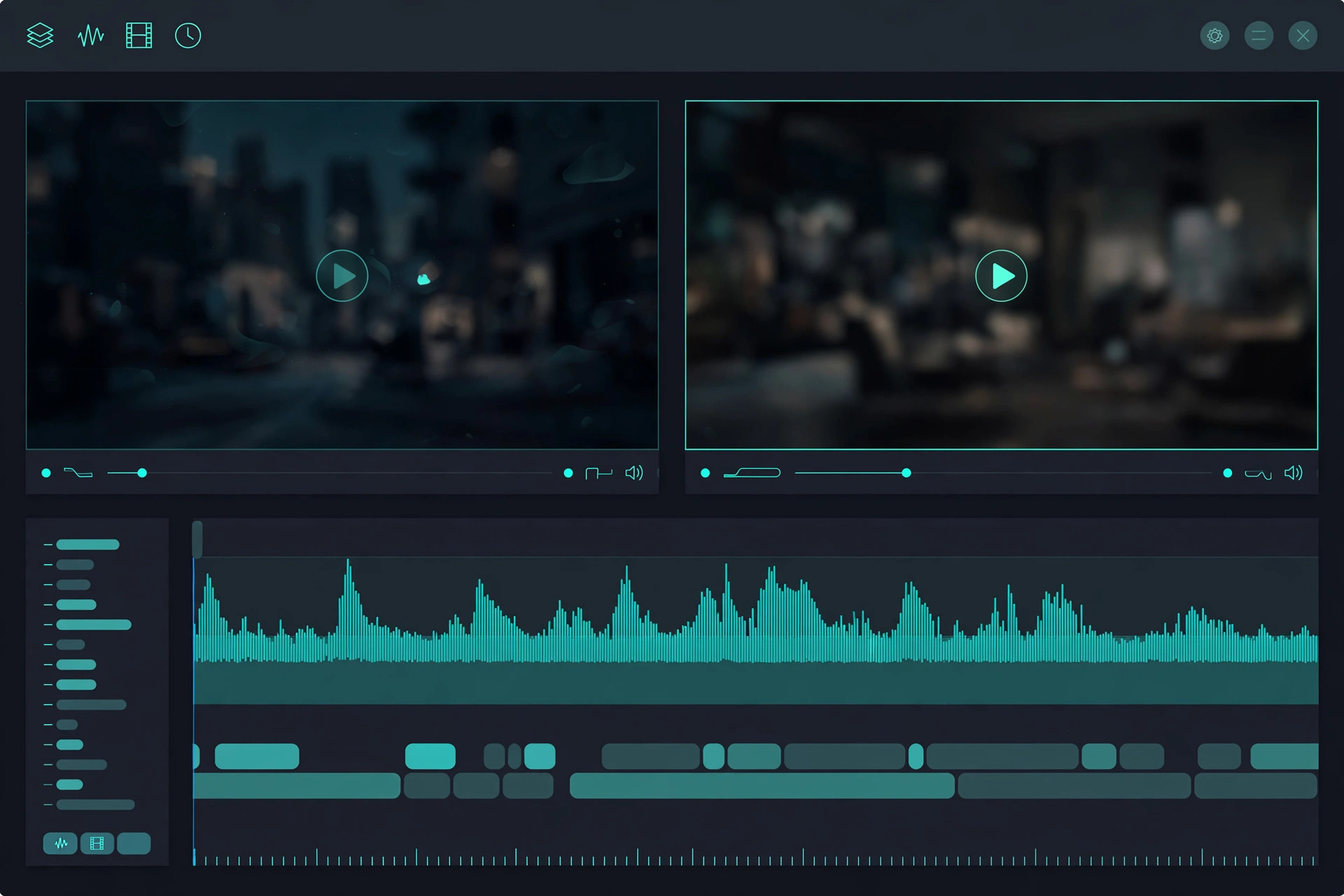
The window shows a split screen: a video player on the left positioned at your first subtitle, and one on the right positioned at your last subtitle. Below each player is a dropdown listing subtitle lines.
Setting the first sync point
- In the left (start) pane, play the video forward a little until you hear a clear, identifiable line of dialogue.
- Pause the moment you hear it.
- From the dropdown under the left player, select the subtitle line that matches what you just heard. (The dropdown defaults to the first subtitle — change it to the line actually being spoken at the paused position.)
- You’ve now told Subtitle Edit: “this subtitle belongs at this exact video timestamp.”
Pick a line that’s unambiguous — a distinctive sentence, not a “yeah” or “okay” that appears fifty times. The further into the video your first anchor is (while still being “near the start”), the better; many users pick something 2–5 minutes in rather than the very first line, since opening credits and logos often have different timing between releases.
Setting the second sync point
- In the right (end) pane, the video starts near your last subtitle. Play/skip until you hear a clear line of dialogue near the end of the video.
- Pause and select the matching subtitle from the right dropdown — same as before.
- Again, choose a distinctive line, ideally in the last 5–10 minutes but not the absolute final credit roll.
Apply and verify
- Click Sync (or OK). Subtitle Edit re-times every subtitle, linearly interpolating between your two anchors.
- Save the subtitle file (save a copy first if you want to preserve the original — File > Save as).
- Verify: play the video with the new subtitles and spot-check the start, middle, and end. Two good anchors fix the vast majority of drift. If the middle is still off while both ends are right, the drift is non-linear — use Point Sync (next section) with additional anchors in the problem region.
Point Sync: Multiple Anchors for Stubborn Drift
When drift isn’t linear — sync wanders, good in some acts and bad in others — two anchors aren’t enough. Point Sync (Synchronization > Point sync…) lets you set as many anchor points as you like:
- Open the dialog. You’ll see your subtitle list.
- Scrub the video to a clear line of dialogue, pause, select the matching subtitle line, and click Set sync point.
- Repeat at several more points spread through the video — 4 to 6 anchors across a movie is plenty.
- Click Apply, then OK, and save.
More anchors = tighter fit, but with diminishing returns; don’t place two anchors seconds apart on ambiguous lines. Spread them across the runtime, and use distinctive dialogue for each.
Point Sync via another subtitle
There’s a clever variant: Synchronization > Point sync via other subtitle…. If you have two subtitle files for the same video — one correctly synced, one with good text but bad timing — this aligns the bad one to the good one. Open the out-of-sync file, point the tool at the in-sync file, match corresponding lines at the start and end, and apply. It’s Visual Sync where a reference subtitle replaces the video.
Change Frame Rate: The One-Click Drift Fix
If you know the cause is a frame-rate mismatch — the subtitle was timed for PAL 25 fps and your video is NTSC 23.976 fps, the most common pair — skip the anchor-point work:
- Go to Synchronization > Change frame rate….
- Set from (the frame rate the subtitle was made for) to to (your video’s frame rate).
- Apply and save.
Common conversions: 25 → 23.976, 23.976 → 25, 25 → 24, 29.97 → 23.976. If you’re unsure which direction, try one, spot-check the end of the video, and undo if it got worse. This is mathematically exact for frame-rate-caused drift — cleaner than Visual Sync’s approximation, when you know the numbers.
Comparing the Sync Tools
| Tool | Menu | Fixes | Effort |
|---|---|---|---|
| Adjust all times | Synchronization > Adjust all times… | Constant offset | Seconds |
| Visual Sync | Synchronization > Visual sync… | Linear drift (incl. frame-rate) | A few minutes, 2 anchors |
| Point Sync | Synchronization > Point sync… | Non-linear drift | 5–10 min, 4–6 anchors |
| Point Sync via other subtitle | Synchronization > Point sync via other subtitle… | Bad timing, good reference available | A few minutes |
| Change frame rate | Synchronization > Change frame rate… | Known frame-rate mismatch | Seconds |
Decision shortcut: constant offset → Adjust all times. Drift + unknown cause → Visual Sync. Drift + known frame rates → Change frame rate. Drift that Visual Sync can’t fix → Point Sync.
After Syncing: Save Correctly
- Save as SRT (File > Save as, choose SubRip) if you started from another format — SRT is the universal format every player handles.
- Check the encoding: File > Save with the right encoding — UTF-8 for most languages. Wrong encoding = garbled characters on playback.
- Keep a backup of the original file until you’ve watched the synced version. Storage is cheap; re-downloading is annoying.
- Name it to match the video (
moviename.en.srtnext tomoviename.mkv) so players like Plex, Kodi, and MX Player pick it up automatically.
Frequently Asked Questions
Is Subtitle Edit really free?
Yes — it’s open-source and free for personal and commercial use, with no ads or bundled software in the official download. Get it from the official site or its GitHub releases.
What’s the difference between Visual Sync and Point Sync?
Visual Sync uses exactly two anchor points (start and end) and applies a linear shift-and-stretch to the whole timeline — perfect for frame-rate drift. Point Sync lets you set many anchors throughout the video for drift that isn’t linear. Start with Visual Sync; escalate to Point Sync only if the middle of the video is still off after both ends are fixed.
How do I know the frame rate of my video and subtitle?
For the video: open it in VLC and check Tools > Codec Information, or use MediaInfo (free). For the subtitle: you usually infer it from the source (PAL DVD = 25 fps, Blu-ray = 23.976 or 24 fps) or from which conversion fixes the drift.
Can Subtitle Edit auto-sync subtitles without me picking points?
The anchor-point methods in this guide are more reliable and work in every version — a few minutes of manual anchoring beats fighting automation on a tricky file.
My subtitles are in sync at the start but the delay grows — which tool?
That’s textbook progressive drift. Use Visual Sync (or Change frame rate if you know the frame rates). Don’t use Adjust all times — a constant shift can’t fix growing drift.
The subtitle file is for a completely different cut of the movie. Can I fix it?
Honestly, no — at least not practically. If scenes are added, removed, or reordered, no linear transformation will align the timelines. Download a subtitle matched to your exact release (check release tags like BluRay/WEB-DL and runtime) instead of spending an hour on the unfixable.
Does syncing work for subtitles embedded in MKV files?
Yes — Subtitle Edit can open MKV files directly, extract the subtitle track, let you sync it, and save it as an external SRT. Name the SRT to match the video and most players will prefer it automatically.
Conclusion
Subtitle Edit covers every sync scenario: Adjust all times for constant offsets in seconds, Visual Sync with two anchor points for the progressive drift that plagues most downloaded subtitles, Point Sync for non-linear wander, and Change frame rate when you know the numbers. Diagnose first (constant vs. drift vs. wrong file), pick the matching tool, spot-check start/middle/end, and save as UTF-8 SRT. Ten minutes of syncing beats two hours of annoyed squinting — every time.
Related guides
- Fix out-of-sync subtitles in VLC — adjust timing during playback
- How to split an SRT file into two parts — divide large subtitle files
- Batch convert VTT subtitles to SRT — convert multiple files at once
- Video to VTT subtitles converter — create caption files