
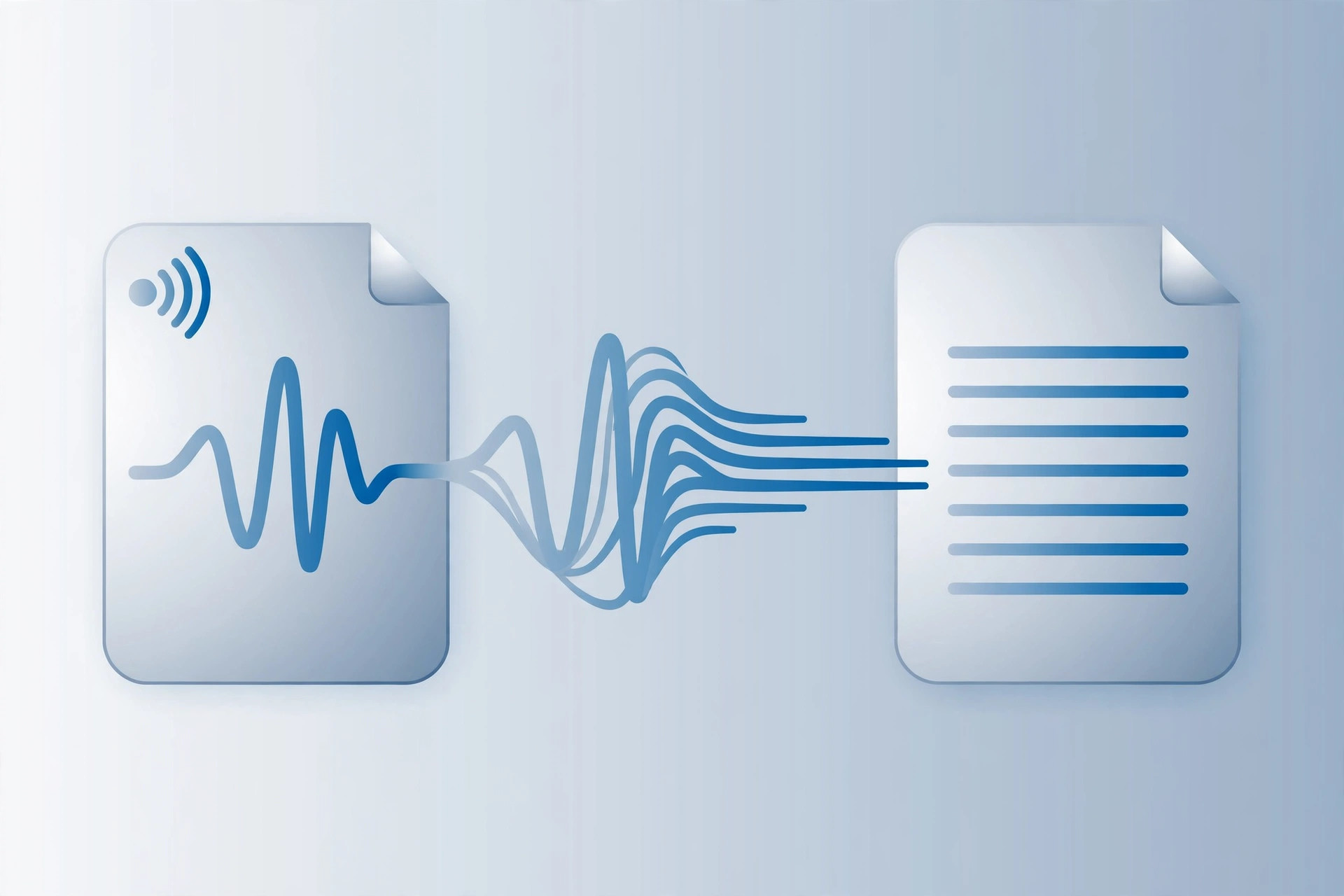
Direct answer: In short, learning how to transcribe M4A to Text takes just a few minutes once you follow the right steps. This guide walks you through each one.
Key takeaways:
- Why Transcribe M4A Files?: M4A files flow through Apple’s ecosystem seamlessly, from Voice Memos to GarageBand to Music to Files.
- Tips for Best Results: M4A files flow through Apple’s ecosystem seamlessly, from Voice Memos to GarageBand to Music to Files.
- M4A Across the Apple Ecosystem: M4A files flow through Apple’s ecosystem seamlessly, from Voice Memos to GarageBand to Music to Files.
- Common M4A Challenges: Voice Memos compression: Recent iOS versions offer a ‘compressed’ storage option for voice memos that reduces quality to save space.
- When in doubt, test with your own audio before committing to a paid plan.
M4A is Apple’s audio format of choice, it is what your iPhone Voice Memos, GarageBand exports, and many podcast recordings are saved as. Efficient and good-sounding, M4A is everywhere in the Apple ecosystem. But like all audio, its contents are locked away from search, skimming, and quoting until transcribed.
If your recordings live as M4A files, you do not need to convert them to another format first. Modern transcription tools read M4A directly, preserving quality and saving you a conversion step. Here is how to turn any M4A file into text free.
Quick Steps to Transcribe M4A
Transcribe M4A files:
- Locate your M4A file, Find it in Files, Voice Memos exports, or wherever your recordings are stored.
- Open the transcription tool, Go to TranscriptionAid in your browser. No conversion or signup needed.
- Upload the M4A, Select the file directly. M4A is fully supported.
- Generate the transcript, Get timestamped text in moments.
- Export and use, Copy, download, or convert to subtitles as needed.
Why Transcribe M4A Files?
- No conversion hassle: Upload M4A directly, no need to convert to MP3 or WAV first.
- Apple ecosystem friendly: Works with Voice Memos, GarageBand, and other Apple app outputs.
- Good quality in, good text out: M4A’s efficient compression preserves speech clarity well for transcription.
- Universal uses: From lecture recordings to music ideas to interview audio, M4A covers it all.
Tips for Best Results
- Export at original quality: When sharing from Voice Memos, choose the uncompressed option if offered.
- Check longer recordings: Multi-hour M4A files work, but splitting them makes review easier.
- Mind background apps: When recording future M4As, close noisy apps, notification sounds confuse transcription.
M4A Across the Apple Ecosystem
M4A files flow through Apple’s ecosystem seamlessly, from Voice Memos to GarageBand to Music to Files. Understanding this flow helps you grab recordings at the best point. Exporting from Voice Memos via Files preserves full quality, while sharing through some third-party apps may compress the audio.
GarageBand users should note that project exports can be large. Bouncing just the vocal or dialogue track to M4A before transcription keeps files manageable and focuses the transcription on speech rather than mixed music.
For podcasters recording on Apple devices, establishing an M4A-to-transcript pipeline, record, export, transcribe, publish, turns each episode’s post-production into a repeatable ten-minute task.
Common M4A Challenges
Voice Memos compression: Recent iOS versions offer a ‘compressed’ storage option for voice memos that reduces quality to save space. For important recordings, use uncompressed storage in Settings.
Sharing degradation: Sending M4A files through some messaging apps recompresses them. For the best transcription input, transfer via Files, AirDrop, or cloud storage rather than chat apps.
GarageBand project confusion: A GarageBand project is not an M4A until exported. Use Share to export the finished mix as an audio file before transcribing.
Old iTunes purchases: Very old iTunes music purchases used protected M4A that cannot be transcribed. This protection does not apply to your own recordings.
Pro tip: If you record voice memos daily, set a weekly calendar reminder to transcribe the batch. Fifteen minutes once a week prevents the backlog that makes most people abandon the habit. Small consistent efforts beat ambitious systems that collapse after two weeks every single time.
Frequently Asked Questions
Do I need to convert M4A to MP3 first?
No. The tool accepts M4A directly, converting first would only waste time and potentially reduce quality.
Where do iPhone voice memos save as M4A?
In the Voice Memos app. Use Share to export them to Files, then upload from there.
Is M4A better than MP3 for transcription?
Both work well. M4A at equivalent bitrates preserves slightly more detail, but the difference is minor for speech.
Can I transcribe protected M4A files?
Only unprotected M4A files can be transcribed. DRM-protected purchases cannot be processed.
Why is my M4A file so small, will it transcribe well?
M4A is efficiently compressed, so small file size is normal and does not indicate poor quality. Speech transcribed from M4A is typically excellent.
Can I transcribe M4A files on Windows?
Yes. The browser-based tool works on any operating system, just upload the M4A file from your Windows machine.
M4A files are compact, high-quality, and everywhere in the Apple world. There is no reason their contents should stay locked in audio form when free transcription is minutes away.
Grab any M4A on your device and try it. The direct-upload workflow means you are literally one drag-and-drop away from a full transcript.
Every recording you transcribe is an investment in findability that pays off each time you search instead of scrub through audio.
Start Transcribing Free
Ready to convert your audio to text? Try the free transcription tool now, no signup, no installation, just upload and go.


