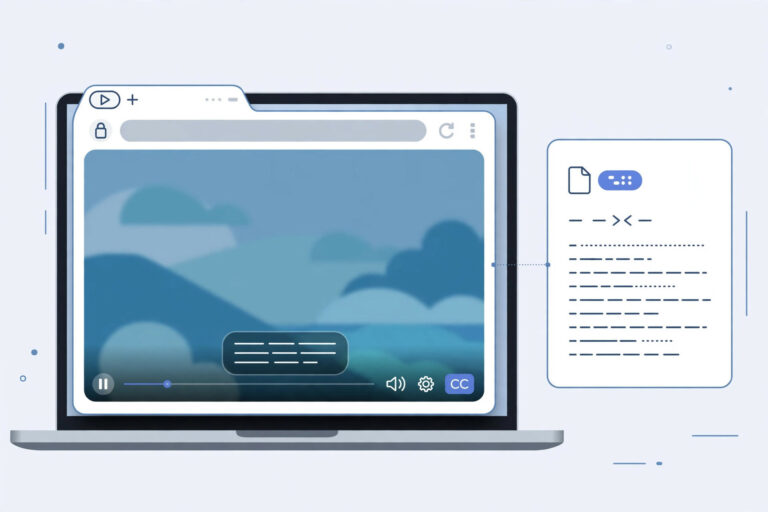
Direct Answer: You can transcribe a Teams meeting by starting transcription from the meeting controls, which generates a live transcript visible to participants. For higher accuracy and better formatting, export the recording and use a dedicated AI transcription tool.
Key Takeaways:
- Start transcription from the More actions menu in any Teams meeting
- Transcripts are saved and searchable after the meeting ends
- Requires appropriate permissions from your IT admin
- Third-party tools offer better accuracy for important meetings
Microsoft Teams is the meeting hub for enterprises worldwide, and its built-in recording captures everything, but a recording is a vault, not a document. Finding what was decided in last month’s sprint review means scrubbing through video, and sharing insights with absent teammates means asking them to watch the whole thing.
Transcription turns Teams recordings into actionable text. Project decisions become searchable, standup updates become skimmable, and the entire meeting history becomes an organizational knowledge base. Here is the free method that works with any Teams recording.
Quick Steps to Transcribe a Microsoft Teams Meeting
Transcribe Teams meeting recordings:
- Get the recording, Teams recordings save to OneDrive or SharePoint. Download the MP4 file.
- Open the transcription tool, Go to TranscriptionAid in your browser. Free, no signup.
- Upload the recording, Drop in the Teams meeting file.
- Generate the transcript, Get timestamped text of the full meeting.
- Build your notes, Extract decisions, owners, and deadlines into your project tracker or wiki.
Why Transcribe Teams Meetings?
- Enterprise knowledge base: Turn scattered meeting recordings into a searchable decision archive.
- Async collaboration: Global teams catch up by reading instead of watching across time zones.
- Accountability: Written records of commitments reduce ‘I don’t remember agreeing to that’ moments.
- Onboarding: New team members can search past discussions instead of asking veterans to re-explain.
Tips for Best Results
- Use meeting roles: Note who the organizer and presenters were, it helps attribute key statements during review.
- Capture chat too: Important links and comments often live in the meeting chat, combine them with the transcript for completeness.
- Standardize the format: A consistent transcript template (date, attendees, decisions, actions) makes archives far more useful.
Teams Transcripts and Information Governance
Enterprises using Teams often have information governance requirements, retention policies, eDiscovery readiness, and compliance archiving. Transcripts support these needs by creating text records that integrate with existing document management and search infrastructure far more easily than video files.
Work with your IT team to establish where transcripts live. A consistent location, a SharePoint library, a Teams channel files tab, or a dedicated wiki, ensures transcripts are findable and governed by the same policies as other corporate records.
For regulated industries, transcripts can serve as the official meeting record. Establish a review-and-approve workflow so transcripts carry the same authority as traditional written minutes.
Common Teams Transcription Challenges
OneDrive sync delays: Large recordings take time to appear in OneDrive after the meeting ends. Wait for sync completion before downloading to avoid truncated files.
Channel vs. private meetings: Channel meeting recordings save to SharePoint; private meeting recordings save to the organizer’s OneDrive. Knowing where to look saves frustration.
Together mode and reactions: Visual features like Together mode and emoji reactions do not appear in transcripts. Note significant reactions separately if they mattered to the discussion.
External participants: Meetings with guests outside your organization may have recording restrictions. Confirm recording permissions before important external calls.
Pro tip: Create a Teams channel dedicated to meeting transcripts. A single searchable location for all transcripts beats scattered files every time, and new team members instantly gain access to organizational history. The teams with the best institutional memory are simply the ones that write things down, or in this case, transcribe them.
Frequently Asked Questions
Where do Teams recordings save?
To the recorder’s OneDrive for Business, or to SharePoint for channel meetings. Download the MP4 from there.
Can I transcribe a Teams live event?
Yes. Once the event recording is available for download, transcribe it like any meeting recording.
How do I handle large enterprise meetings with many speakers?
Transcription captures the words; add speaker names during review for the most important contributors.
Is this compliant with corporate data policies?
The tool processes audio in your browser. Always confirm your organization’s policies for handling meeting recordings.
Does Teams have built-in transcription I can use instead?
Teams offers live transcription and, on some plans, post-meeting transcripts. Availability depends on your organization’s settings and license tier, the method here works universally.
How long are Teams recordings kept?
Retention depends on your organization’s OneDrive/SharePoint policies. Download important recordings promptly rather than assuming they persist indefinitely.
Your organization’s meetings contain its most important decisions and ideas. Transcription converts that ephemeral discussion into permanent institutional knowledge. Start with your next important meeting.
Transcribe one recent Teams meeting as a pilot. Share the transcript with attendees and watch how quickly the team asks for it to become standard practice.
Every recording you transcribe is an investment in findability that pays off each time you search instead of scrub through audio.
Start Transcribing Free
Ready to convert your audio to text? Try the free transcription tool now, no signup, no installation, just upload and go.
Related Guides
Sources and further reading: Microsoft Teams