Direct answer: In short, learning how to transcribe MP3 to Text Free takes just a few minutes once you follow the right steps. This guide walks you through each one.
Key takeaways:
- Quick Steps to Transcribe MP3: Converting an MP3 file to text takes just a few minutes with the right tool.
- Why Transcribe MP3 Files?: MP3 is a lossy compressed format, which means some audio data is discarded to reduce file size.
- Tips for Best Results: MP3 is a lossy compressed format, which means some audio data is discarded to reduce file size.
- MP3 Transcription: Formats and Compatibility: MP3 is a lossy compressed format, which means some audio data is discarded to reduce file size.
- When in doubt, test with your own audio before committing to a paid plan.
MP3 remains the most common audio format in the world, from podcast episodes and recorded lectures to voice memos and interview files. If you have ever needed to turn one of these recordings into readable text, you know how tedious manual transcription can be. An hour of audio can take four to six hours to type out by hand, and that is time most people simply do not have.
The good news is that transcribing MP3 to text no longer requires expensive software or outsourcing to a transcription service. Free browser-based tools can now convert your MP3 files into accurate, timestamped transcripts in a fraction of the time. Whether you are a student working through lecture recordings, a journalist processing interviews, or a podcaster creating show notes, this guide walks you through the fastest free method available.
Quick Steps to Transcribe MP3
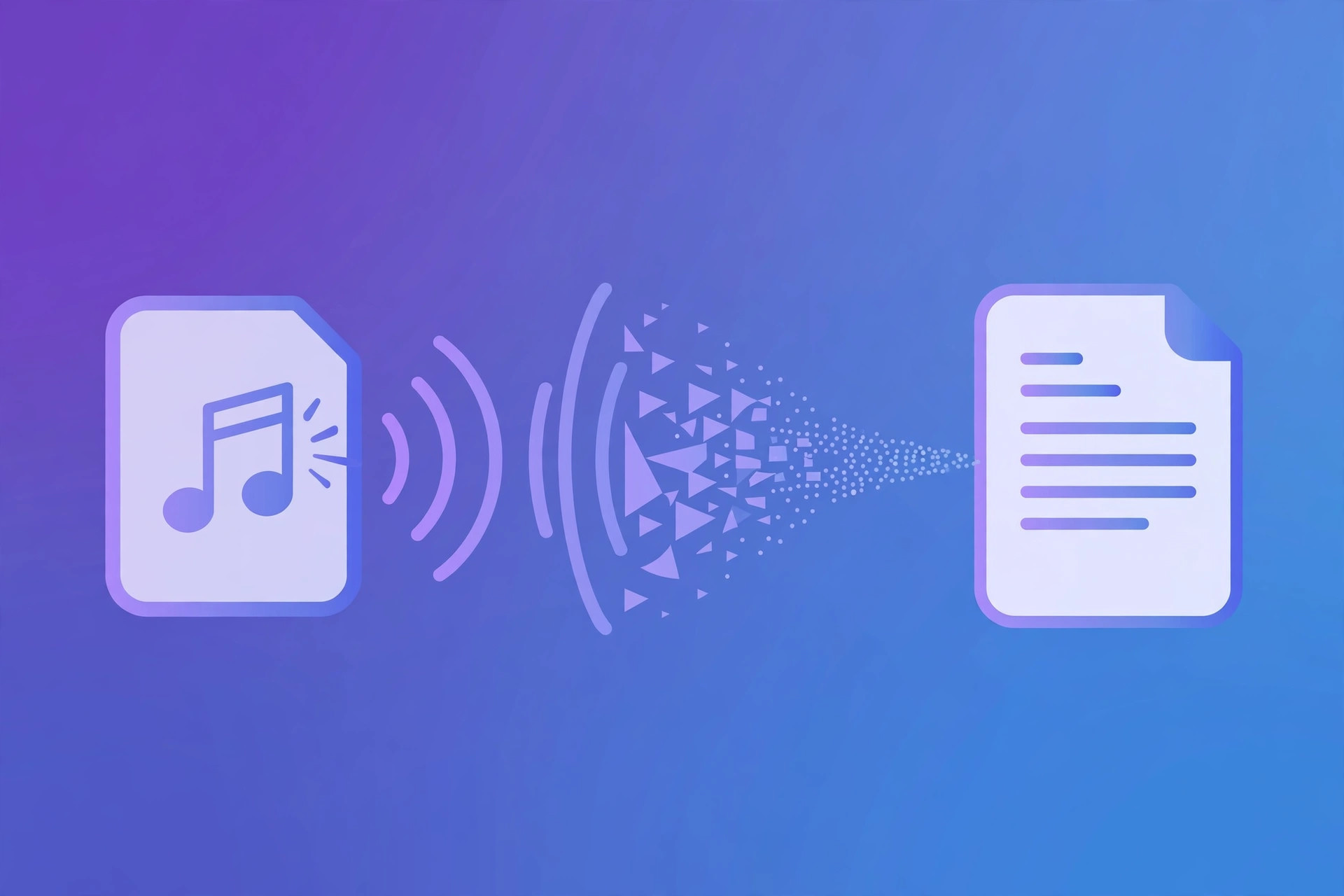
Converting an MP3 file to text takes just a few minutes with the right tool. Here is the complete process:
- Open the free transcription tool, Go to TranscriptionAid in your browser. There is nothing to install and no account to create.
- Upload your MP3 file, Drag and drop the file or click to browse. Most MP3 files, regardless of length, are accepted.
- Start the transcription, Click the transcribe button. The tool processes the audio and generates text with automatic timestamps.
- Review the transcript, Read through the generated text. The timestamps make it easy to jump back to any moment in the original audio.
- Export your text, Copy the transcript, download it as a text file, or convert it to SRT subtitles for video use.
Why Transcribe MP3 Files?
- Searchable content: Text is searchable; audio is not. A transcript lets you find any quote or moment in seconds instead of scrubbing through an hour of playback.
- Accessibility: Transcripts make your audio content accessible to deaf and hard-of-hearing audiences, and to anyone who prefers reading over listening.
- Content repurposing: One MP3 recording can become a blog post, newsletter, social media quotes, and show notes, but only once it exists as text.
- Study and reference: Students and researchers can highlight, annotate, and cite transcripts far more easily than raw audio files.
Tips for Best Results
- Use clear recordings: The cleaner the original audio, the more accurate the transcript. Reduce background noise where possible before uploading.
- Check speaker-heavy sections: Overlapping voices are the hardest for any transcription system. Review sections where multiple people talk at once.
- Break up very long files: If your MP3 is several hours long, consider splitting it into shorter segments for faster processing and easier review.
- Proofread proper nouns: Names, brand terms, and technical jargon may need manual correction, a quick pass catches these reliably.
MP3 Transcription: Formats and Compatibility
MP3 is a lossy compressed format, which means some audio data is discarded to reduce file size. For speech transcription, this rarely matters, the frequencies important for human speech are preserved well even at modest bitrates. However, if your MP3 was encoded at a very low bitrate (below 64 kbps), you may notice artifacts that reduce accuracy. When you have a choice, a 128 kbps or higher MP3 gives the transcription engine clean, reliable input.
One advantage of MP3 is universal compatibility. Every recorder, phone, and editing tool can produce or consume MP3, so you will never face a format your tools cannot open. If you receive audio in an unusual format, converting to MP3 first is always a safe intermediate step before transcription.
For archival purposes, consider keeping the original MP3 alongside the transcript. Storage is cheap, and having the source audio lets you verify any disputed passage years later. A simple folder structure, audio files in one folder, transcripts in another, with matching filenames, keeps large collections manageable.
Common MP3 Transcription Challenges
Variable bitrates: Some MP3s use variable bitrate encoding, which is efficient but can confuse older tools. Modern transcription handles VBR transparently, so this is rarely an issue today, but if a file fails to process, re-encoding to constant bitrate is a quick fix.
ID3 tag confusion: MP3 files carry metadata tags for artist, album, and artwork. These do not affect transcription, but extremely large embedded artwork can bloat file size unnecessarily. Stripping oversized artwork before upload speeds things up.
Long silences: Recordings with extended pauses, think unedited meeting captures, waste processing time on silence. A quick trim of dead air at the start and end, plus any long mid-recording gaps, makes everything faster.
Corrupted headers: Occasionally an MP3 has a damaged header from an interrupted recording or transfer. Most audio editors can repair this in seconds by re-saving the file, after which transcription proceeds normally.
Frequently Asked Questions
How long does it take to transcribe an MP3 file?
Most MP3 files are transcribed in a fraction of their playback length. A 30-minute recording typically produces a transcript in just a few minutes, depending on file size and audio clarity.
Is there a limit on MP3 file size?
The free tool handles typical MP3 recordings without issue. For very large files, splitting them into shorter segments keeps processing smooth.
Are the transcripts accurate?
Accuracy depends on audio quality. Clear, single-speaker recordings produce highly accurate results. Noisy or multi-speaker audio may need light editing afterward.
Can I get timestamps with my transcript?
Yes. The tool generates automatic timestamps alongside the text, so you can jump to any moment in the original MP3 recording.
Can I transcribe MP3 files on my phone?
Yes. The browser-based tool works on mobile browsers too. Upload the MP3 from your phone’s storage and transcribe anywhere, useful for journalists filing from the field.
What is the best MP3 bitrate for transcription?
128 kbps or higher gives excellent results for speech. Below 64 kbps, compression artifacts start to interfere. If you control the recording settings, 128 kbps mono is the sweet spot of size and quality.
Start Transcribing Free
Ready to convert your audio to text? Try the free transcription tool now, no signup, no installation, just upload and go.