Speaker Diarization Software Free Online
A plain transcript tells you what was said. A diarized transcript tells you who said it. That difference matters enormously for meetings, interviews, panel discussions, podcasts, and focus groups — any recording where knowing the speaker changes the meaning. The technology that splits audio by speaker is called speaker diarization, and you do not need expensive software to use it. This guide explains how speaker labeling works in plain language and how to get diarized transcripts free in your browser.
What Is Speaker Diarization?
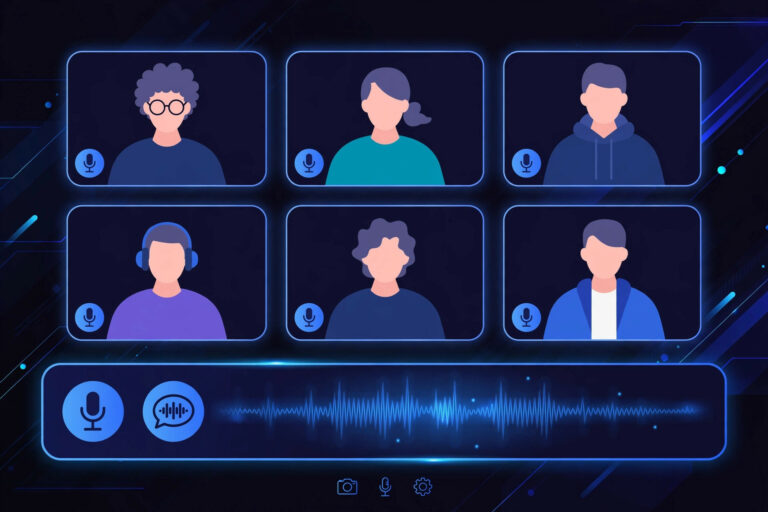
Speaker diarization answers one question: “who spoke when?” Given an audio recording with multiple people, a diarization system divides it into segments and groups those segments by voice — producing labels like Speaker 1, Speaker 2, and so on. Combined with speech-to-text, the result is a transcript where every line is attributed to a speaker.
A quick example of the difference:
Without diarization:
“So what’s the timeline looking like? We need it by Friday. That’s tight but doable if design signs off today.”
With diarization:
Speaker 1 (Manager): “So what’s the timeline looking like?”
Speaker 2 (Developer): “We need it by Friday.”
Speaker 1 (Manager): “That’s tight but doable if design signs off today.”
Same words, completely different usefulness. The second version tells you who committed to what — which is the entire point of transcribing a meeting.
Note what diarization does not do: it does not know anyone’s name. It identifies distinct voices, not identities. Turning “Speaker 2” into “Priya from Design” is a quick manual step you do afterward — and it is worth doing, because named speakers make transcripts far more readable.
How Speaker Diarization Works (Simply Explained)
You do not need a machine-learning degree to use diarization, but a rough mental model helps you get better results. Most systems work in three stages:
- Voice activity detection. The system first separates speech from silence, music, and background noise. This is why long silent stretches and music beds can confuse diarization — the system has to decide what counts as “someone talking.”
- Speaker embedding. For each speech segment, the system extracts a “voice fingerprint” — a mathematical summary of what makes that voice distinctive (pitch patterns, timbre, speaking rhythm). Think of it like a hash of the voice: similar fingerprints probably belong to the same person.
- Clustering. Segments with similar fingerprints are grouped together and assigned labels: Speaker 1, Speaker 2, and so on. The system does not know how many speakers there are in advance — it infers the count from the data, which is also why it sometimes splits one person into two labels or merges two similar voices into one.
Knowing this helps you diagnose problems. If the transcript keeps switching speakers mid-sentence, the clustering stage is struggling — usually because of overlapping speech or very short utterances (“yeah,” “right,” “mm-hm”) that do not contain enough voice data to fingerprint reliably.
When Do You Actually Need Speaker Labels?
Not every transcript needs diarization. Here is a practical rule: if the recording has two or more speakers and the speaker’s identity changes the meaning, you want labels. Common cases:
- Meetings. Who committed to what, who raised the objection, who agreed to the deadline.
- Interviews. Separating interviewer questions from interviewee answers — essential for journalists and researchers.
- Podcasts and panel discussions. Readers need to follow who is talking, especially with three or more voices.
- Focus groups and user research. Attributing quotes to participants (even anonymized as P1, P2) is the basis of the analysis.
- Sales calls. Distinguishing rep from prospect turns a transcript into coaching material.
- Court-style and formal proceedings. Accurate attribution is non-negotiable when the record matters.
You can skip diarization for single-speaker content (lectures, sermons, dictation, solo podcasts) — it adds nothing and can occasionally insert spurious speaker changes. Most tools let you toggle it off.
How to Get Speaker-Labeled Transcripts Free Online
The free workflow is straightforward:
- Prepare your audio. MP3, M4A, or WAV from any recorder, meeting platform, or phone. Diarization works best when speakers are reasonably distinct and not constantly talking over each other.
- Open a free browser-based transcription tool with speaker labeling. No signup, no installation.
- Upload the file and enable speaker detection if it is a toggleable option.
- Wait for processing. Diarization adds some processing time on top of transcription — a 30-minute meeting might take a little longer.
- Review the speaker labels. Read through and fix the two common errors (see below), then replace “Speaker 1” / “Speaker 2” with real names or roles.
- Export. Save the labeled transcript as text or with timestamps for your records.
Try Speaker Labeling Free in Your Browser
(Disclosure: TranscriptionAid is our own tool.) TranscriptionAid’s free transcription tool includes speaker labeling: upload your multi-speaker audio in the browser — no signup, no server upload — and get a transcript with speakers separated and timestamped. Open the page, drop in the file, and review the labeled result.
Once the labels are in, renaming “Speaker 1” to the actual name is quick and transforms the transcript from a technical output into a document you can share with a team.
Fixing the Two Common Diarization Errors
Automated speaker labeling is good but imperfect. Nearly all errors fall into two buckets, and both are quick to fix:
Over-segmentation: one person split into two speakers. This happens when someone’s voice changes — they laugh, whisper, speak more quietly, or the microphone distance shifts. The fix: read through, notice that “Speaker 3” only appears in lines that are clearly the same person as “Speaker 1,” and merge them with find-and-replace.
Under-segmentation: two people merged into one speaker. This happens with similar-sounding voices, or when two people speak in very short alternating turns. The fix: listen to the flagged sections and split the labels manually. Short back-and-forth exchanges (“Right.” “Exactly.” “So then—”) are the usual suspects.
A practical review pass: search the transcript for the rarest speaker label. If “Speaker 4” appears only twice in an hour-long meeting that had three attendees, it is almost certainly a mis-split of someone else. Merge it and move on. Most meetings need only a few minutes of label cleanup.
Tips for Better Speaker Separation
You can materially improve diarization quality before the tool ever sees the file:
- Record with separation when possible. Meeting platforms that record each participant on a separate audio channel give diarization a massive head start. If your setup offers per-participant tracks, use them.
- Minimize crosstalk. People talking over each other is the hardest case for every diarization system. A gentle “one at a time” norm in meetings helps both humans and machines.
- Avoid speakerphone. A single room microphone smears everyone’s voice together with room echo. Individual mics or headsets produce far cleaner voice fingerprints.
- Keep utterances substantive. Diarization needs a second or two of speech to fingerprint a voice. Rapid-fire one-word interjections will always be the least reliable labels — which is fine, since they rarely carry important content.
- Trim non-speech. Long music intros, applause, and silence give the system noise to chew on. A quick trim improves both speed and accuracy.
Speaker Diarization vs. Related Features
The terminology around multi-speaker audio gets muddled. A quick clarification:
- Speaker diarization = “who spoke when” (Speaker 1, Speaker 2…). This is the core technology.
- Speaker identification = matching a voice to a known person (“this is Sarah”). Requires voice profiles enrolled in advance; free browser tools generally do diarization, not identification — you add the names yourself.
- Timestamps = “when was it said” (12:34). Often bundled with diarization but technically separate. A transcript can have timestamps without speaker labels and vice versa.
- Summarization = “what was the gist.” A different AI task entirely, usually a paid feature.
When evaluating any tool, check which of these it actually offers. “AI meeting notes” marketing often blurs them together.
Frequently Asked Questions
Is speaker diarization really available for free?
Yes. Speaker labeling is increasingly a standard feature of free browser-based transcription tools, not a premium add-on. You may find advanced options (custom speaker counts, voice profiles) in paid products, but basic who-spoke-when labeling is widely available free with no signup.
How many speakers can it handle?
Most free tools handle the common cases — 2 to 6 speakers — reliably. Accuracy degrades as speaker count rises: a 10-person roundtable with crosstalk is genuinely hard. For large panels, per-participant recording tracks help more than any algorithm.
Can it identify speakers by name automatically?
Not typically in free tools. Diarization labels voices as Speaker 1, Speaker 2, etc. Assigning real names is a quick manual step — and it is often preferable, since automatic name identification raises consent and privacy questions.
Why does it sometimes label one person as two speakers?
Voice fingerprints shift when someone laughs, whispers, gets emotional, or moves relative to the microphone. The clustering stage then treats the two “versions” as different people. Merging the duplicate label with find-and-replace is quick.
Does overlapping speech break diarization?
It is the hardest case, yes. When two people talk simultaneously, their voice fingerprints mix and the system must guess — sometimes it assigns the segment to one speaker, sometimes it splits it oddly. Minimizing crosstalk during recording is the most effective fix.
Can I get speaker labels with timestamps together?
Yes — most tools that offer diarization also timestamp each segment, so every labeled line carries a time code. That combination (who + when + what) is what makes meeting transcripts genuinely navigable.
Conclusion
Speaker diarization turns a wall of text into a conversation you can actually follow — who asked, who answered, who committed. It is no longer a premium feature locked behind enterprise software: free browser tools label speakers with no signup and no cost. Upload your next multi-speaker recording, spend a few minutes fixing labels and adding names, and you will have meeting notes that write themselves.
Dive deeper: For related workflows, see our interview transcription guide and how to transcribe user interviews for multi-speaker research. If you record meetings, the Microsoft Teams transcription guide covers exporting recordings, and our guide to transcribe meeting notes in Notion covers organizing speaker-labeled notes. For the underlying technology, see the pyannote.audio open-source diarization toolkit and NIST’s Speaker Recognition Evaluation series.