Direct answer: Bottom line: getting aAC to Text Converter right matters more than getting it fast. Here is what you need to know.
Key takeaways:
- AAC to Text Converter: Free Transcription (No Signup): AAC audio is everywhere, even if you rarely see the file extension.
- What Is AAC? (And How Is It Different from M4A?): This confusion comes up constantly, so let us settle it:
- Where AAC Files Come From: Understanding the source helps you pick the right workflow:
- 4 Free Ways to Convert AAC to Text: Browser-based tools win for most people: no installation, no account, and the file never uploads to a server, it is processed right in your
- Audio quality drives accuracy more than any feature, so start with a clean recording.
[ez-toc]
AAC to Text Converter: Free Transcription (No Signup)
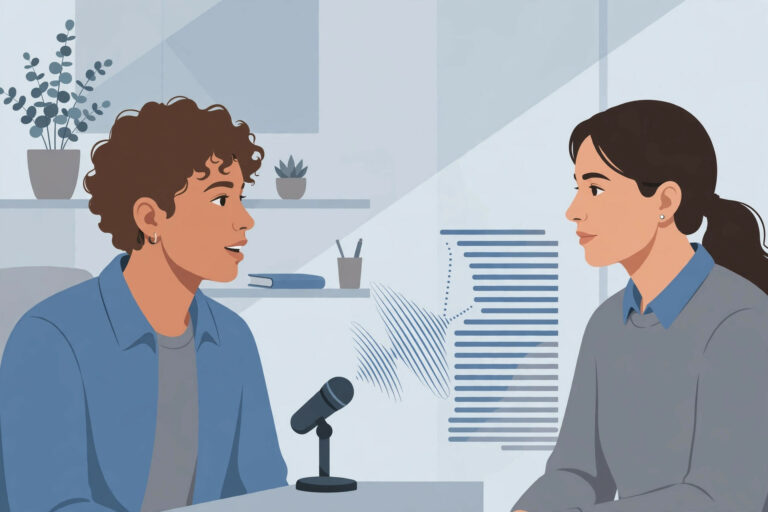
AAC audio is everywhere, even if you rarely see the file extension. It is the codec inside your iPhone voice memos, inside most M4A music files, behind YouTube’s audio, and inside countless Android recordings and podcasts. When you need the words out of one of these files, a lecture, an interview, a voice note, an AAC to text converter does the job in minutes, free, with no signup.
This guide explains what AAC actually is (and how it differs from M4A), where AAC files come from, the free methods for converting them to text, and how to get a clean, accurate transcript.
What Is AAC? (And How Is It Different from M4A?)
This confusion comes up constantly, so let us settle it:
- AAC (Advanced Audio Coding) is a codec, a method of compressing audio. It is the successor to MP3 and delivers better sound quality at the same file size.
- M4A is a container, a file format that usually holds AAC-encoded audio. When your iPhone saves a voice memo as .m4a, the audio inside is almost always AAC.
So “converting AAC to text” and “converting M4A to text” are usually the same task. You might encounter raw .aac files (rather than .m4a) when:
- Audio is extracted or demuxed from video files without re-encoding
- Files come from certain Android recording apps or older Nokia/Sony devices
- Audio is downloaded from streaming or video platforms with tools that split streams
- Files are exported from audio software in raw AAC format
A good transcription tool accepts both .aac and .m4a without you needing to know or care which one you have. If a tool only lists M4A support, try it anyway, or rename the extension, since the underlying audio is identical in most cases.
Where AAC Files Come From
Understanding the source helps you pick the right workflow:
- Phone recordings. iPhone Voice Memos (M4A/AAC) and many Android recorder apps produce AAC audio by default.
- Video platforms. YouTube, and many similar services, stream AAC audio, downloaded or extracted audio often arrives as AAC or M4A.
- Podcasts and audiobooks. AAC is a common distribution codec because of its efficiency; chapterized audiobooks frequently use it.
- Broadcast and streaming. Internet radio, DAB digital radio recordings, and streaming captures are often AAC.
- Video files. MP4 and MOV videos typically contain AAC audio tracks, extracting the audio gives you an AAC file ready for transcription.
If your file came from inside a video (MP4, MOV), you have two options: transcribe the video file directly if your tool supports it, or extract just the audio first. Extracting the audio is easy with free tools like VLC (Media > Convert/Save) and produces a smaller file that processes faster.
4 Free Ways to Convert AAC to Text
| Method | Cost | Signup | Best for |
|---|---|---|---|
| Browser-based transcription tool | Free | No | Fast, private conversion of any AAC/M4A file |
| Desktop transcription software | Free to paid | Varies | Batch jobs and offline workflows |
| Phone transcription apps | Freemium | Usually yes | Recording and transcribing on the same device |
| Manual transcription | Free (your time) | No | Very short clips needing perfect accuracy |
Browser-based tools win for most people: no installation, no account, and the file never uploads to a server, it is processed right in your browser. This also sidesteps the confusion between AAC and M4A containers, since the browser reads the actual audio.
Desktop software suits power users transcribing dozens of files, but requires setup and maintenance.
Phone apps are handy but typically meter free usage aggressively and process audio on company servers.
Manual transcription remains the accuracy gold standard for clips under a couple of minutes, at the cost of three to four times the audio length in typing time.
How to Convert AAC to Text Free in Your Browser
(Disclosure: TranscriptionAid is our own tool.) The fastest free method, step by step:
[TOOL EMBED HERE]
- Open the tool above in your browser. No signup, no download, it works on desktop and mobile browsers.
- Drop in your AAC or M4A file. Drag it from your file manager or use the picker. Processing happens in your browser, so nothing uploads to a server.
- Wait for the transcription. Short voice notes finish in under a minute; longer recordings take proportionally longer. Timestamps are generated automatically.
- Review the transcript. Automated transcription is strong on clear speech. Skim for the usual suspects: proper names, technical terms, numbers, and homophones (“their” vs. “there”).
- Export your result. Plain text for notes and documents; SRT or VTT with timecodes if you need subtitles or captions.
If your AAC came from a video file and your tool accepts video directly, you can skip the extraction step entirely, just drop in the MP4 or MOV.
Getting Accurate Results from AAC Audio
AAC is an efficient, clean-sounding codec, so transcription quality hinges on the recording conditions, not the format:
- Use the original file. Do not convert AAC to MP3 to WAV and back, every transcode loses a little quality. Feed the transcription tool the file as you received it.
- Check the bitrate. Very low-bitrate AAC (below ~64 kbps, common in old downloads or cheap recorders) sounds noticeably worse and transcribes worse. Anything at 96 kbps and above is fine for speech.
- Record in quiet environments. Background noise is the single biggest accuracy killer across all formats.
- Keep speakers separated in time. Overlapping voices confuse every transcription engine. In interviews, let each person finish before the other starts.
- Mind phone recording distance. A phone in a shirt pocket produces muffled audio; a phone on the table between speakers produces a clean transcript.
- Proofread with timestamps. When the transcript says something odd, the timestamp lets you jump to that exact moment in the audio and hear what was actually said.
AAC vs MP3 vs M4A: What Should You Transcribe?
A quick reference for the format maze:
| Format | What it is | Transcribe directly? |
|---|---|---|
| AAC (.aac) | Raw AAC audio stream | Yes, no conversion needed |
| M4A (.m4a) | Container usually holding AAC | Yes, same audio as AAC |
| MP3 (.mp3) | Older compressed codec | Yes, slightly lower quality, still fine |
| WAV (.wav) | Uncompressed audio | Yes, largest files, cleanest signal |
The practical takeaway: never convert between these formats “to improve transcription.” Pick the original file and transcribe it as-is. Format conversion only helps when your tool genuinely cannot open the file you have, in which case, converting to MP3 or WAV with a free tool like VLC or Audacity is a one-minute fix.
What to Do with Your AAC Transcript
- Meeting and lecture notes. Turn recordings into searchable, skimmable documents.
- Content repurposing. A transcribed podcast episode becomes a blog post, newsletter, or social media quotes, text ranks in search engines, audio does not.
- Subtitles and captions. Export SRT/VTT to caption videos for accessibility and engagement.
- Research and journalism. Searchable transcripts of interviews make quoting and fact-checking dramatically faster.
- Personal archives. Dictated ideas and voice notes become an organized, searchable knowledge base instead of an audio graveyard.
Frequently Asked Questions
What is the difference between AAC and M4A for transcription?
Almost none. AAC is the audio codec; M4A is usually just a container holding AAC audio. Transcription tools treat them identically, if a tool accepts M4A, it accepts the AAC inside it. Feed it whichever file you have.
Do I need to convert AAC to MP3 before transcribing?
No. Converting between lossy formats only degrades quality slightly and wastes your time. Transcribe the AAC file directly.
Is there a free AAC to text converter with no signup?
Yes, browser-based transcription tools like the one embedded above process your file locally with no account and no upload. You get a timestamped transcript you can export as text or subtitles.
How accurate is automated AAC transcription?
On clear, single-speaker audio in a quiet room, automated transcription is very usable, typically requiring only light proofreading of names and technical terms. Accuracy drops with background noise, heavy accents, overlapping speech, and very low-bitrate source files. Always proofread anything you will publish or rely on.
Can I transcribe AAC audio extracted from a YouTube video?
If you have the legal right to the content (your own video, Creative Commons, or permitted use), yes, extract the audio and transcribe it like any AAC file. Respect copyright: do not transcribe content you do not have rights to use.
Will my AAC file be uploaded to a server?
With a browser-based tool that processes locally, no, the file stays on your device. This is a genuine privacy advantage for sensitive recordings. If privacy matters for your use case, verify that any tool you use processes locally rather than uploading.
Conclusion
AAC is the invisible workhorse of digital audio, inside your voice memos, your music, your videos, and getting its words into text should be as frictionless as the format itself. Skip the format conversions, skip the signups, and transcribe the original file directly in your browser. A few minutes of processing plus a quick proofread turns any AAC recording into searchable, shareable, quotable text.
Dive deeper: If you work with Apple audio, our M4A audio guide covers the closely related container format. For recorded conversations, see how to create interview transcripts with quotable text. If your audio comes from video, our YouTube transcript guide shows the extraction workflow. For caption issues, see subtitle troubleshooting. On the technical side, the AAC format reference details the codec, and the MPEG-4 audio standard covers the underlying specification.