Direct answer: In short, learning how to transcribe a WAV File to Text takes just a few minutes once you follow the right steps. This guide walks you through each one.
Key takeaways:
- Why Transcribe WAV Files?: In professional audio production, WAV is often an intermediate format, the master from which MP3s and streaming versions are derived.
- Tips for Best Results: In professional audio production, WAV is often an intermediate format, the master from which MP3s and streaming versions are derived.
- WAV in Professional Workflows: In professional audio production, WAV is often an intermediate format, the master from which MP3s and streaming versions are derived.
- Common WAV Transcription Challenges: Enormous file sizes: An hour of CD-quality WAV approaches 600MB.
- When in doubt, test with your own audio before committing to a paid plan.
WAV files are the gold standard of audio quality, uncompressed, lossless, and preferred by musicians, podcasters, and audio professionals who refuse to compromise on sound. But that quality comes with a tradeoff: WAV files are enormous, and their contents are just as unsearchable as any other audio format.
The good news is that WAV’s pristine audio quality actually works in your favor for transcription. Clean, uncompressed audio gives transcription systems the best possible input, which means more accurate results with less editing. Whether it is a studio recording, a field interview, or an archival transfer, here is how to convert WAV to text free.
Quick Steps to Transcribe a WAV File
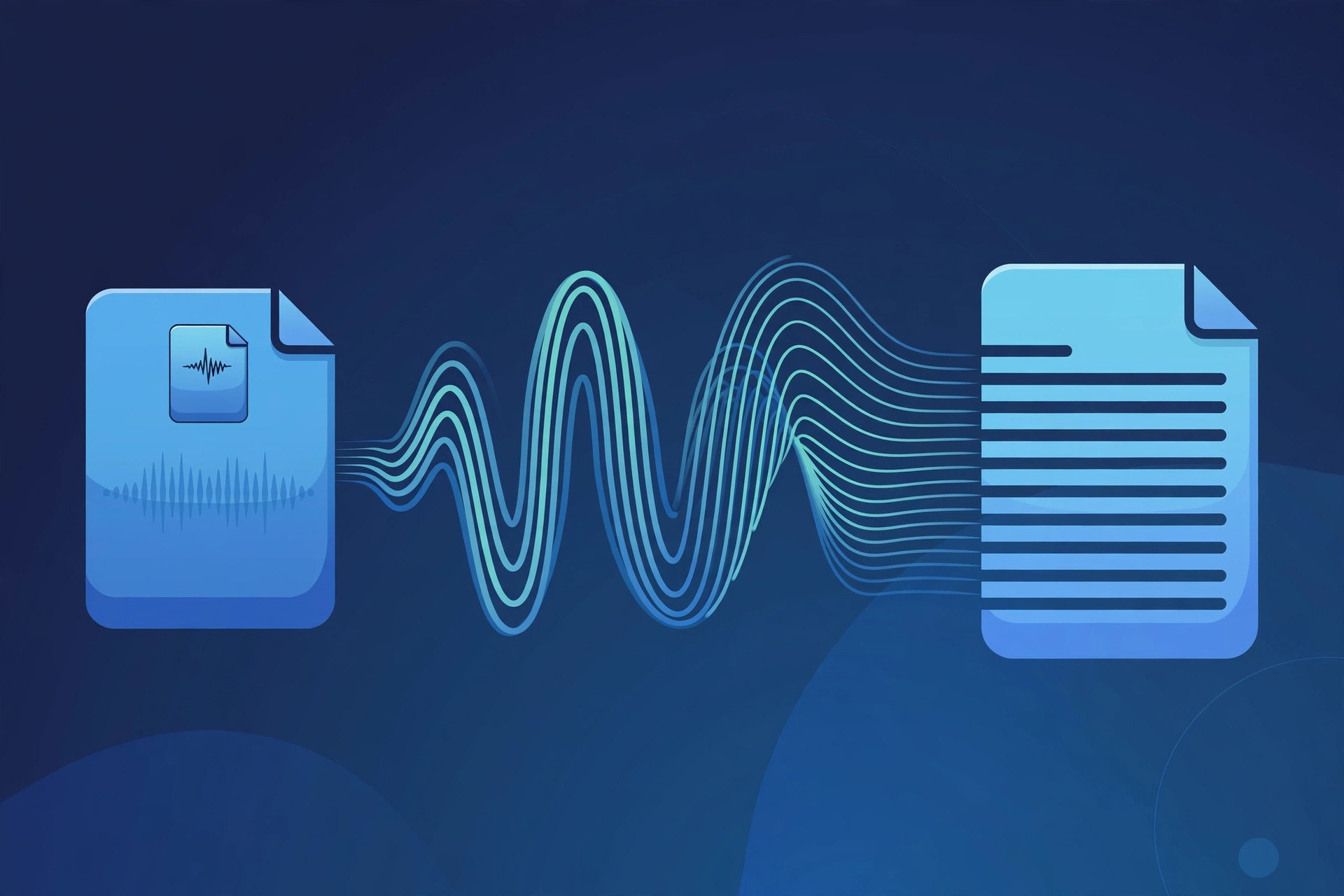
Transcribe WAV files to text:
- Open the transcription tool, Go to TranscriptionAid in your browser. Free, no installation.
- Upload your WAV file, Drag and drop the file. The uncompressed audio uploads as-is.
- Start transcription, Generate a timestamped transcript. WAV clarity typically yields excellent accuracy.
- Review the text, Even with great audio, a quick pass catches proper nouns and specialized terms.
- Export, Download as text or convert to subtitle formats as needed.
Why Transcribe WAV Files?
- Best possible accuracy: Uncompressed audio gives transcription the cleanest signal, minimizing errors from the start.
- Archive accessibility: Historical recordings, oral histories, and master sessions become searchable text archives.
- Professional workflows: Studios can generate session notes, lyric sheets, and documentation from recordings.
- Preserve while accessing: Keep the archival-quality WAV while working from a lightweight, searchable transcript.
Tips for Best Results
- Consider file size: WAV files are large. A stable connection helps uploads complete smoothly, or convert a copy to a smaller format if upload speed is an issue.
- Leverage the quality: Because WAV audio is so clean, even quiet passages and subtle speech transcribe better than in compressed formats.
- Check sample rate issues: Extremely high sample rates offer no transcription benefit, standard rates work perfectly.
WAV in Professional Workflows
In professional audio production, WAV is often an intermediate format, the master from which MP3s and streaming versions are derived. Transcribing at the WAV stage means working from the highest quality source before any compression artifacts are introduced downstream.
For archival digitization projects, WAV is the preservation standard recommended by libraries and archives worldwide. Transcribing these archival WAVs creates access copies, searchable text that lets researchers discover content without handling fragile originals or massive audio files.
Musicians use WAV transcription for lyric documentation, session logging, and collaboration. A transcribed rehearsal or writing session captures arrangement ideas and lyrical fragments that would otherwise vanish.
Common WAV Transcription Challenges
Enormous file sizes: An hour of CD-quality WAV approaches 600MB. Upload bandwidth, not transcription capability, is usually the practical limit. Compressing a working copy to a high-bitrate MP3 for transcription purposes is perfectly reasonable.
Broadcast WAV metadata: Professional WAV files may contain broadcast extension chunks with timecode data. This metadata does not interfere with transcription but can confuse very old software, modern tools handle it fine.
Multi-channel recordings: Interview setups sometimes record each microphone to a separate channel. If your WAV has isolated channels, mixing down to mono before upload gives the cleanest transcription input.
Archival transfers: Digitized tapes and records carry hiss, wow, and flutter. Light noise reduction before transcription helps, but avoid aggressive processing that distorts speech.
Frequently Asked Questions
Are WAV files better for transcription than MP3?
Yes, marginally. The uncompressed audio gives the transcription engine a cleaner signal, which can improve accuracy on difficult passages.
My WAV file is huge, will it upload?
Large files upload fine with a stable connection. For multi-gigabyte files, splitting into sections is the practical approach.
Can I transcribe 24-bit studio recordings?
Yes. Bit depth does not affect transcription, the tool reads the audio content regardless of technical specifications.
Should I convert WAV to MP3 first?
Not necessary. Upload the WAV directly and let its superior quality work for you.
Should I keep the WAV after transcribing?
For archival and professional work, yes, WAV is a preservation format. For casual use, keeping the transcript plus a compressed MP3 copy is usually sufficient.
Can I transcribe WAV files from old CDs?
Yes. Rip the CD tracks to WAV (or directly to MP3), then upload. This is a common workflow for digitizing spoken-word CDs and audiobooks.
High-fidelity audio deserves high-utility text. Your WAV files represent careful recording work; a transcript ensures that work pays dividends every time someone needs to find, quote, or reference what was captured.
Do not let file size intimidate you. Upload the WAV, get your transcript, and put that pristine audio to work as searchable, quotable, endlessly useful text.
Start Transcribing Free
Ready to convert your audio to text? Try the free transcription tool now, no signup, no installation, just upload and go.