Direct answer: Bottom line: knowing how to transcribe iPhone Voice Memos to Text is straightforward with the right method. Below are the steps that actually work.
Key takeaways:
- Quick Steps to Transcribe iPhone Voice Memos: Convert iPhone voice memos to text:
- Why Transcribe iPhone Voice Memos?: The real power of transcribing voice memos emerges over time.
- Tips for Best Results: The real power of transcribing voice memos emerges over time.
- Building a Personal Knowledge Base: The real power of transcribing voice memos emerges over time.
- Audio quality drives accuracy more than any feature, so start with a clean recording.
The iPhone Voice Memos app is one of the most-used recording tools in the world. Students capture lectures, journalists record interviews, musicians save song ideas, and professionals dictate notes on the go. But those recordings pile up as opaque audio files, unsearchable, unskimmable, and easy to forget.
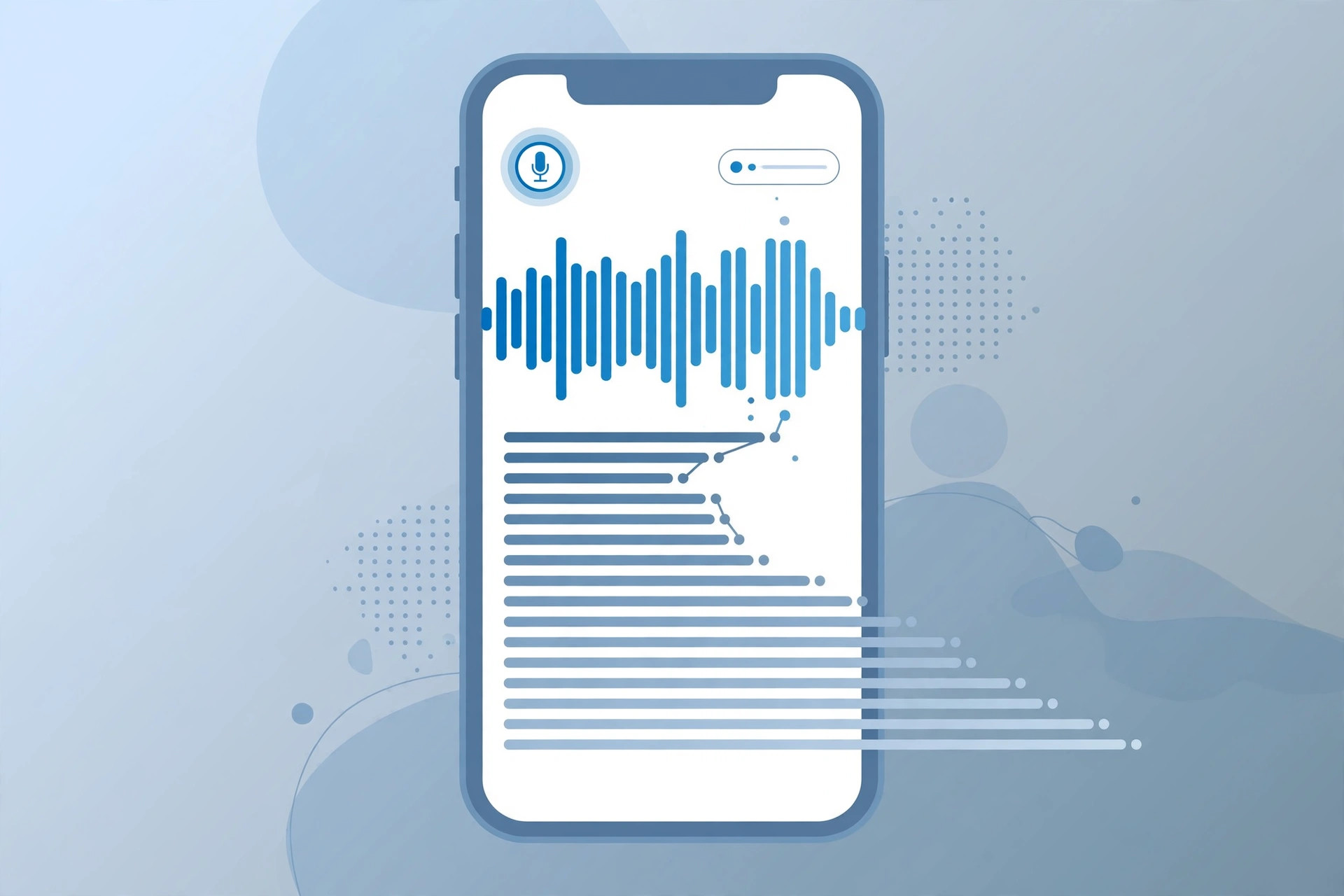
Transcribing your voice memos turns them into a searchable personal archive. That brilliant idea from last month, the quote from an interview, the key point from a lecture, all findable in seconds once they exist as text. Here is how to convert any iPhone voice memo to text without paying for an app or subscription.
Quick Steps to Transcribe iPhone Voice Memos
Convert iPhone voice memos to text:
- Share the memo, In the Voice Memos app, tap the recording, tap Share, and save it to Files or send it to yourself.
- Open the transcription tool, Go to TranscriptionAid in your iPhone or desktop browser. No app install needed.
- Upload the memo file, Select the M4A voice memo from your Files app or downloads.
- Generate the transcript, Start transcription and get timestamped text within moments.
- Save and organize, Copy the text into Notes, Notion, or your preferred app alongside the original recording.
Why Transcribe iPhone Voice Memos?
- Searchable memory: Find any idea, quote, or reminder from months of recordings with a simple text search.
- Faster review: Skim a 20-minute memo’s transcript in two minutes instead of listening to the whole thing.
- Share the content: Send the key points as text to collaborators who do not need the full audio.
- Backup your ideas: Text is compact, durable, and easy to back up compared to piles of audio files.
Tips for Best Results
- Record close to the source: Hold the iPhone reasonably close to whoever is speaking, distance is the biggest accuracy killer.
- Rename memos first: Give each memo a descriptive name before transcribing so transcripts stay organized.
- Trim dead air: Use the trim feature in Voice Memos to cut long silences before uploading.
- Review in context: Keep the original memo handy while proofreading, a quick listen resolves any unclear passages.
Building a Personal Knowledge Base
The real power of transcribing voice memos emerges over time. After a year of consistent transcription, you possess a searchable archive of your own thinking, ideas, observations, reminders, and reflections that would otherwise have dissolved into forgotten audio files.
Writers find this especially valuable. Dictated first drafts, captured dialogue snippets, and spoken brainstorming sessions become raw material that can be searched and reshaped into finished work. Many authors report that their best ideas were captured as voice memos and rediscovered months later through transcripts.
Set a simple routine: transcribe memos weekly, file the text with descriptive titles, and review the archive monthly. You will be surprised what your past self knew.
Common Voice Memo Challenges
Pocket recordings: Memos recorded from inside a pocket or bag are muffled beyond usefulness. If a recording sounds bad to your ears, transcription will struggle too, re-record when possible.
Interrupted recordings: Phone calls or notifications that interrupt a memo create gaps. Enabling Do Not Disturb during important recordings prevents this.
Storage limits: Long memo collections consume significant iPhone storage. Transcribing and then deleting the audio (keeping the text) reclaims space while preserving the content.
iCloud sync delays: Memos may take time to appear across devices. If a memo is missing on your Mac, check that iCloud sync has completed on the iPhone first.
Frequently Asked Questions
What format are iPhone voice memos?
Voice Memos records in M4A format, which the transcription tool accepts directly, no conversion needed.
Can I transcribe directly on my iPhone?
Yes. The tool runs in your iPhone’s browser, just upload the memo file from the Files app.
How do I get a voice memo out of the app?
Tap the memo, tap the Share button, then save to Files, AirDrop it to your Mac, or email it to yourself.
Will it work for long recordings?
Yes. Hour-long memos transcribe fine, though splitting very long recordings can speed things up.
Can I automate voice memo transcription?
While full automation requires third-party shortcuts, a simple routine works well: weekly, export new memos to Files, upload them in a batch, and file the resulting transcripts.
Do voice memos back up to iCloud automatically?
Yes, if iCloud is enabled for Voice Memos. This means your recordings are safe even if your phone is lost, and accessible from your Mac for transcription.
Your iPhone is already a powerful capture device; transcription makes it a powerful knowledge device. The memos you record this week could become the article, the pitch, or the insight you need months from now, but only if they exist as searchable text.
Start Transcribing Free
Ready to convert your audio to text? Try the free transcription tool now, no signup, no installation, just upload and go.