Direct answer: In short, this guide covers how to transcribe Dictation Recordings to Text Free: the practical options, the trade-offs, and what to watch out for.
Key takeaways:
- What Counts as a Dictation Recording: Dictation is any recording where one person speaks to capture text: voice memos, medical or legal dictation, meeting notes spoken into a phone, ideas
- Step 1: Get the File Off Your Device: Before transcribing, get the recording onto the computer where you’ll work with the text:
- Method 1: Free Browser-Based Transcription: The simplest path: upload your dictation file to a free transcription tool in your browser and get text back in minutes.
- Method 2: Your Phone’s Built-In Dictation Features: If you haven’t recorded yet, or you’re willing to re-speak, your phone can transcribe live as you talk, free:
- When in doubt, test with your own audio before committing to a paid plan.
Doctors dictating patient notes, lawyers dictating memos, writers capturing ideas on a walk, dictation recordings are everywhere, and they’re some of the easiest audio to transcribe. One speaker, close microphone, deliberate speech: that’s the best-case scenario for transcription tools. And you can do it free, with no subscriptions.
[ez-toc]This guide covers getting dictation files off your phone or handheld recorder and turning them into text, through free browser tools, your phone’s built-in features, and free desktop software, including options that keep everything on your own machine.
Related guide: How to Transcribe Dictation Audio to Text
What Counts as a Dictation Recording
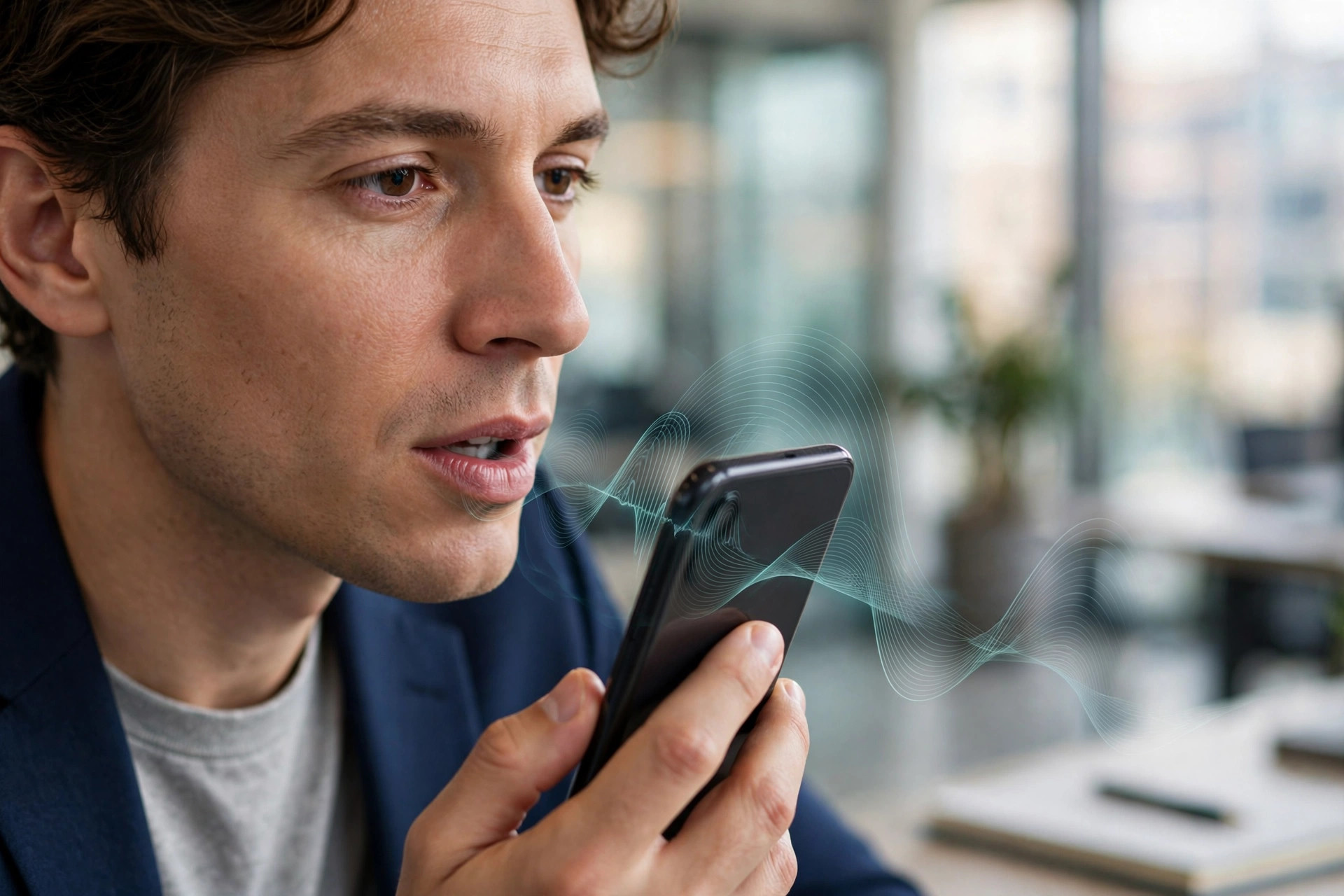
Dictation is any recording where one person speaks to capture text: voice memos, medical or legal dictation, meeting notes spoken into a phone, ideas recorded while driving. The common traits:
- Single speaker. No crosstalk, no speaker separation needed.
- Close microphone. Phones and handheld recorders are held near the mouth, so audio quality is usually good.
- Deliberate pace. People dictating tend to speak clearly and pause between thoughts.
This is why dictation transcribes so well. If your use case is “turn my voice memos into text,” you’re starting from the easiest possible position.
Step 1: Get the File Off Your Device
Before transcribing, get the recording onto the computer where you’ll work with the text:
From an iPhone: Voice Memos can share recordings via AirDrop, email, or Messages. For many files, connect to a computer and copy them over, or use iCloud Drive. Voice Memos records in M4A format, which most transcription tools accept.
From an Android phone: Voice recordings usually live in the Recorder app or as files you can share directly. Most Android recorders save as M4A, MP3, or WAV. Share via email, messaging, or a USB cable.
From a handheld recorder: Olympus, Sony, and Philips dictation recorders typically connect over USB and appear as a drive, drag the files off. Many save as MP3 or WAV; some use DSS or DS2 formats, which may need converting first (the recorder’s bundled software usually handles this, or a free converter like Audacity).
File format tip: MP3, WAV, and M4A are universally accepted. If your recorder produces something exotic, convert to MP3 or WAV before uploading anywhere, it saves a round of troubleshooting later.
Method 1: Free Browser-Based Transcription
The simplest path: upload your dictation file to a free transcription tool in your browser and get text back in minutes. No installation, no account needed with the right tool.
(Disclosure: TranscriptionAid is our own tool.) TranscriptionAid is built for exactly this, drop in an audio file, get a timestamped transcript in the browser, free with no signup. Dictation is its sweet spot: single-speaker, clear audio transcribes quickly and accurately.
The general workflow with any browser tool:
- Open the tool and upload your audio file (or drag and drop).
- Wait for processing, a five-minute dictation typically takes a minute or two.
- Review the transcript, fixing any misheard words, especially names, technical terms, and numbers.
- Copy the text into your document, notes app, or email.
When browser tools are the best choice: occasional dictation, working from a Chromebook or a computer you can’t install software on, or when you just want the fastest possible path from file to text.
Method 2: Your Phone’s Built-In Dictation Features
If you haven’t recorded yet, or you’re willing to re-speak, your phone can transcribe live as you talk, free:
- iPhone: The microphone key on the keyboard works in any text field, including Notes and email. Speak, and it types. It handles punctuation commands (“period,” “new paragraph”) reasonably well.
- Android: Gboard’s microphone button does the same in any app. Google’s live transcription is quite good for clear speech.
- Windows: Press Win+H for voice typing anywhere. Mac: Press the Fn key twice (or use Dictation in System Settings).
Live dictation is genuinely useful for short notes and first drafts. Its limits: it needs an internet connection for the best accuracy, it can struggle with specialized vocabulary, and talking to your phone in public isn’t always practical. For recordings you already have, you need a transcription tool (Method 1 or 3), not live dictation.
Method 3: Free Desktop Tools That Keep Audio Local
Some people prefer that their audio never leaves their machine, doctors with patient notes, lawyers with client matters, anyone with sensitive material. The free route here is local transcription software:
Whisper-based desktop apps. Whisper is OpenAI’s free, open-source speech recognition model, and there are free community-built desktop apps that run it on your own computer. Because processing happens locally, your audio isn’t uploaded to anyone’s server. The trade-off is setup effort and speed, you’ll need a reasonably capable computer, and very long files take a while.
What “local” gets you: privacy (audio stays on your device), no usage limits, and no subscription. What it costs: installation, occasional troubleshooting, and slower turnaround than cloud tools on modest hardware.
A practical hybrid: use a browser tool for routine, non-sensitive dictation (fast, zero setup) and a local tool for anything confidential. Most people don’t need to pick just one.
Getting Better Results From Dictation
Dictation already transcribes well, but a few habits make it nearly perfect:
- Speak punctuation for structured notes. Saying “period,” “comma,” “new paragraph” while dictating saves cleanup later, especially for letters and memos.
- Spell out unusual names once. “Smith, S-M-I-T-H” in the recording gives you (and the tool) the correct spelling on the first pass.
- Dictate in a quiet spot. A parked car is a classic dictation studio for a reason. Wind noise and traffic are the main enemies.
- Keep recordings short. One memo per file, not an hour of mixed topics. Short files transcribe faster, are easier to review, and are simpler to file.
- State numbers carefully. “Fifteen” vs. “fifty” is the classic dictation error. For critical figures, say the digits: “one-five” or spell it out both ways.
| Method | Cost | Privacy | Best for |
|---|---|---|---|
| Browser transcription tool | Free | Audio processed in browser or by the service, check the tool’s policy | Occasional files, fastest setup |
| Phone live dictation | Free (built in) | Processed by the phone vendor’s service | Short new notes, no existing file |
| Local desktop app (Whisper-based) | Free | Audio stays on your machine | Sensitive material, no uploads |
Frequently Asked Questions
What’s the best free way to transcribe a voice memo?
Upload the file to a free browser-based transcription tool, it’s the fastest option with no installation. For sensitive recordings you’d rather not upload anywhere, use a free local transcription app that processes audio on your own computer.
Can I transcribe dictation without an internet connection?
Yes, with the right setup. Local transcription apps that run on your own machine don’t need internet once installed. Browser-based tools and phone live-dictation generally do need a connection. If offline matters to you, set up a local tool in advance, don’t wait until you’re somewhere without signal.
My handheld recorder saves in DSS format. What do I do?
DSS/DS2 is a proprietary dictation format. Convert it to MP3 or WAV first, your recorder’s bundled software usually does this, or you can use a free audio converter. Once it’s MP3 or WAV, any transcription tool will accept it.
How accurate is free transcription for dictation?
Very good, usually. Single-speaker, close-mic, deliberate speech is the easiest case for transcription software. Expect to fix proper nouns, technical terms, and homophones (“their/there”), but the bulk of the text should be right on the first pass.
Can I transcribe old cassette dictation tapes?
Yes, but there’s a transfer step first: play the tape into your computer (via a cassette deck with a line-out cable into your mic/line-in port, or a USB cassette capture device) and record it as a digital file with free software like Audacity. Then transcribe the digital file normally. Clean the tape heads first, old tapes often need it.
Is it safe to upload dictation with client or patient information?
Think before you upload. For anything confidential, prefer a tool that processes audio locally on your device, or check the transcription service’s privacy policy carefully, specifically where audio is processed and how long it’s retained. When in doubt, keep sensitive dictation offline.
Conclusion
Transcribing dictation for free comes down to matching the method to the material. Routine voice memos: upload to a free browser tool and you’re done in minutes. Short new notes: just use your phone’s built-in dictation. Sensitive recordings: run a local transcription app so the audio never leaves your machine. And whatever method you pick, get the file off your device promptly, speak your punctuation, and spell the tricky names, the five minutes of care at recording time saves twenty at cleanup time.