Direct answer: The quick version: transcribe Zoom Meeting Recording to Text Free is easier than most people expect once you know the key facts. Details below.
Key takeaways:
- Step 1: Download Your Zoom Recording: Before anything else, you need the recording as a file on your device.
- Step 2: Transcribe the File Free in Your Browser: With the file on your device, a browser-based transcription tool converts it to text without sending the audio to anyone’s servers.
- Step 3: Turn the Transcript into Useful Notes: A raw transcript is long; useful meeting notes are short.
- Tips for Better Zoom Transcripts: Meeting recordings contain other people’s voices and often confidential business information.
- The right choice depends on your volume: occasional use favors free tiers, heavy use favors paid plans.
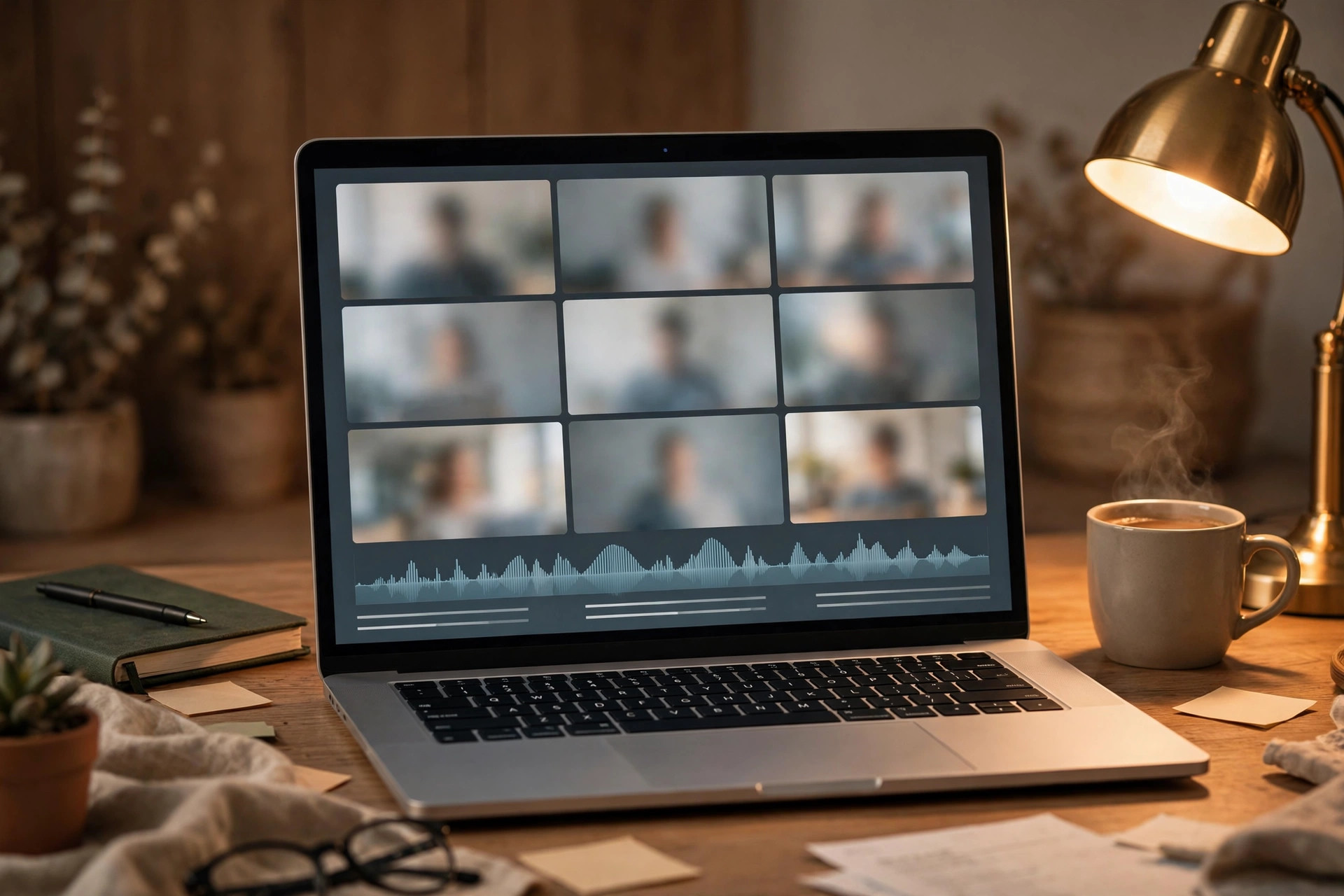
Zoom records your meetings, but a recording you never rewatch is just disk space. Transcribing a Zoom recording to text turns that file into something useful: searchable notes, action items, quotes for follow-up emails, and a record of decisions that does not depend on anyone’s memory of the call.
This guide uses the downloaded-file workflow only: you take the recording file you already have (or can download from your Zoom account), and transcribe it with a free browser-based tool. No signup, no upload, no meeting bot joining your calls, just the file you own, turned into text.
Table of Contents
Step 1: Download Your Zoom Recording
Before anything else, you need the recording as a file on your device. Zoom stores recordings in two places, and the download path depends on which you used.
Cloud recordings:
- Sign in to the Zoom web portal and open Recordings.
- Find the meeting and click its title.
- Under the recording files, click Download next to the video or audio-only file. The audio-only
.m4afile is smaller and is all you need for transcription. - Save the file somewhere you can find it, a
recordings/folder works well.
Local recordings:
- In the Zoom desktop app, open Settings → Recording to see the storage location.
- Recordings save as video files in dated folders, typically with a separate
audio.m4afile. That audio file is the ideal input. - Copy it to a working folder.
A practical note: only download and transcribe recordings you are entitled to. If you were a participant, check your organization’s policy on keeping and processing meeting recordings before running them through any tool, including free ones.
Related guide: How to Transcribe a Zoom Meeting Recording
Zoom, Teams, and Google Meet Transcription From Recordings
Zoom, Teams, and Google Meet recordings can all be transcribed from the recording file, whatever platform was used for the meeting. Download the recording, check the audio quality, and set the language before you transcribe it. Each platform also offers its own caption or transcript feature, but the recording file gives you more control over editing, speaker labels, and export format. If the meeting had several speakers, label them by name rather than by generic labels, so the transcript is useful for follow-up actions.
For Google Meet, check the recording and caption options for your account before the meeting, because availability depends on the plan. Our guide to transcribing a Google Meet recording covers the recording workflow, and our guide to transcribing a Microsoft Teams meeting covers the Teams workflow with the same editing checks. For Zoom, our guide to downloading a Zoom cloud recording transcript explains how to get the recording and transcript from Zoom itself.
Can I transcribe a Zoom recording without the host’s transcript?
Yes, if you have the recording file and permission to use it, you can transcribe it with a transcription tool. Check consent and storage rules before you share the transcript.
Step 2: Transcribe the File Free in Your Browser
With the file on your device, a browser-based transcription tool converts it to text without sending the audio to anyone’s servers.
(Disclosure: TranscriptionAid is our own tool.)
The Process
- Open the transcription tool in your browser. You will see an upload area, a button or a drag-and-drop zone for your file.
- Select your Zoom audio file (the
.m4afrom the download step, or the video file, most tools accept both). The filename appears to confirm the upload. - Start transcription. A progress indicator shows the file being processed. A one-hour meeting usually takes a few minutes, since the tool runs in your browser rather than in a server queue.
- Review the transcript. It arrives with timestamps and, depending on the tool, speaker labels. Skim for the key sections: decisions, action items, deadlines.
- Copy or download the text. Save it as a
.txtfile or paste it into your notes, then archive the recording per your organization’s retention policy.
Because everything happens locally in the browser, there is no account to create and no file sitting on a vendor’s server afterward, a meaningful difference from cloud transcription services for work meetings.
Step 3: Turn the Transcript into Useful Notes
A raw transcript is long; useful meeting notes are short. Here is the compression routine:
Decisions. Search the transcript for phrases like “let’s go with,” “we decided,” “approved.” Decisions are the highest-value content, capture each with the timestamp.
Action items. Look for commitments: “I’ll,” “can you,” “by Friday.” List each with an owner and a deadline. If the transcript does not name an owner explicitly, note who was speaking.
Open questions. Meetings often end with unresolved threads: “we still need to check,” “pending approval.” Pull these into a separate list so they do not get lost.
Key quotes. For stakeholder updates, one or two verbatim lines carry more weight than a summary. Mark them as you review.
A simple template speeds this up:
Meeting: [title], [date]
Decisions:
- ...
Action items:
- [Owner] [task] by [date]
Open questions:
- ...
Key quotes:
- "...", [Speaker]
Paste the filled template into your team’s channel or doc and archive the full transcript alongside it. Future disputes about “what did we agree on?” get answered by Ctrl+F, not by argument.
Tips for Better Zoom Transcripts
- Prefer the audio-only file. It is smaller, processes faster, and contains everything the transcript needs. Download the
.m4arather than the video when Zoom offers both. - Mute non-speakers. This is a habit for future meetings: participants who stay muted except when talking produce far cleaner transcripts. Background typing and chair squeaks confuse speech recognition.
- Ask for names at the start. If the tool does not label speakers well, you can search-and-replace generic labels with real names after the fact. Knowing who is “Speaker 2” matters when assigning action items.
- Split very long meetings. A three-hour recording transcribes fine, but reviewing it is painful. If Zoom split the recording into parts, transcribe the parts you need first.
- Keep the recording until the notes are final. The transcript is a working copy; the recording is the source of truth. Delete it only when your notes are agreed and your retention policy allows.
Privacy and Consent Notes
Meeting recordings contain other people’s voices and often confidential business information. Two rules cover most situations:
- Process recordings where your organization allows. If your company requires meeting data to stay inside approved systems, respect that, do not run recordings through personal tools. A browser-based tool that keeps audio on your device is easier to justify than one that uploads it, but “on my device” still means “processed outside the approved stack.” Check first.
- Inform participants. Most jurisdictions and most company policies require telling people a meeting is recorded. Zoom shows recording indicators by default; keep them on, and mention transcription when you share notes derived from a recording.
Frequently Asked Questions
Can I transcribe a Zoom meeting without downloading the file?
Not with this workflow. This guide covers the downloaded-file method: you take the recording you already have and transcribe it locally. Tools that join live meetings as bots are a different category, usually paid, and this article does not cover them.
How long does it take to transcribe a Zoom recording?
Roughly a few minutes per hour of audio in a browser-based tool, depending on your device. The review pass, turning the raw transcript into decisions and action items, takes another 15 to 30 minutes for a typical hour-long meeting.
Will the transcript identify who said what?
Many tools attempt speaker labeling (“Speaker 1,” “Speaker 2”), and accuracy varies with audio quality and crosstalk. Expect to correct labels, especially in meetings where people talk over each other. Zoom’s own audio transcript (available on some plans) is an alternative with its own trade-offs.
What file format should I download from Zoom?
The audio-only .m4a is ideal: small and complete. The video .mp4 works too if you want the visuals archived. Both are accepted by most transcription tools.
Is it legal to transcribe a meeting recording?
If the recording was made lawfully, with participants informed and per your organization’s policy, transcribing it for your own notes is generally fine. Rules vary by jurisdiction (some require all-party consent for recording in the first place), so the legal question is really about the recording, not the transcription. When in doubt, ask before recording.
Can I share the transcript with people who missed the meeting?
Yes, and that is one of the best uses for it. Share the condensed notes (decisions, actions, quotes) rather than the full raw transcript, people read the summary, and the full text stays available for anyone who wants detail.
Conclusion
A Zoom recording is a liability until it is transcribed, then it becomes an asset. Download the audio file, run it through a free browser-based tool, and spend twenty minutes turning the result into decisions and action items. You get a searchable record of every meeting without paying for a meeting bot or uploading sensitive calls to a vendor’s cloud.
Next time a meeting ends and someone asks “so what did we decide?”, you will have the answer in text before the recording finishes downloading.
Sources and further reading: Zoom