
Direct answer: In short, this guide covers mP3 to Text Free: the practical options, the trade-offs, and what to watch out for.
Key takeaways:
- The 5-Minute Workflow: (Disclosure: TranscriptionAid is our own tool.)
- When You Need MP3 to Text: MP3 files come in different bitrates, and it is worth knowing where the quality floor is:
- MP3 Bitrates and Transcription Quality: MP3 files come in different bitrates, and it is worth knowing where the quality floor is:
- Accuracy Tips: MP3 is a compressed format, but at normal bitrates it transcribes cleanly.
- When in doubt, test with your own audio before committing to a paid plan.
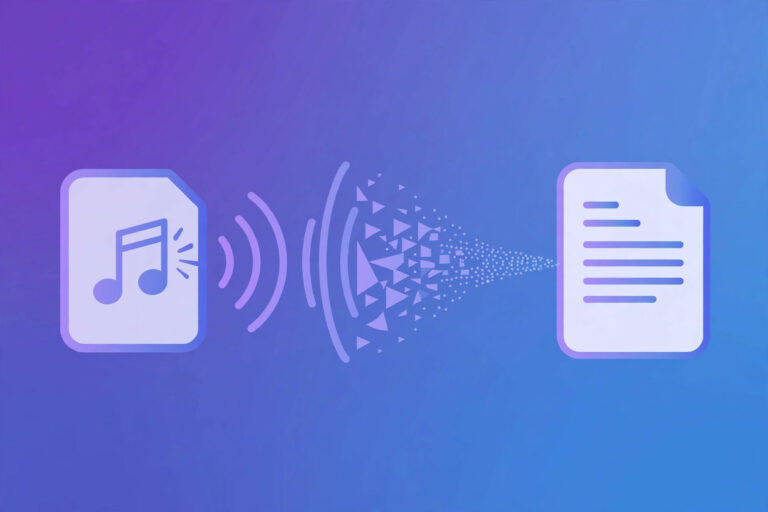
MP3 is the most common audio format on the planet, podcasts, music, lectures, voice recordings, downloaded audio. If you have speech in an MP3 and need it as text, the process takes minutes: drop the file into a free browser-based converter, get a timestamped transcript, export it. No signup, no upload to a server, no cost.
[ez-toc]This guide covers the quick workflow, how to get accurate results, and what to do with your transcript.
Related guide: How to Transcribe MP3 to Text Free
The 5-Minute Workflow
(Disclosure: TranscriptionAid is our own tool.)
[TOOL EMBED HERE]
- Open the tool above in your browser, desktop or mobile. No account needed.
- Drop in your MP3. The file is processed in your browser, not uploaded to any server.
- Wait for the transcript. A 10-minute MP3 takes a few minutes; timestamps generate automatically.
- Proofread. Skim for names, technical terms, and numbers, the usual error spots. Click any timestamp to hear that exact moment.
- Export. Plain text for notes and documents; SRT/VTT for subtitles and captions.
That is the entire process. MP3’s small file sizes mean even hour-long recordings start instantly with no upload wait.
When You Need MP3 to Text
- Podcasts. Turn episodes into show notes, blog posts, and quotable social content.
- Lectures and talks. Recorded classes become searchable study notes.
- Interviews. Get exact quotes without re-listening to the whole recording.
- Voice notes. Dictated ideas become organized text.
- Meetings. Recorded calls become minutes with action items.
MP3 Bitrates and Transcription Quality
MP3 files come in different bitrates, and it is worth knowing where the quality floor is:
| Bitrate | Typical source | Transcription quality |
|---|---|---|
| 128 kbps+ | Podcasts, music, modern recorders | Excellent, no concerns |
| 64–96 kbps | Voice recorders, older downloads | Good, proofread a little more carefully |
| Below 64 kbps | Cheap recorders, heavily compressed streams | Usable but error-prone on names and fast speech |
The practical rule: transcribe whatever you have. A 48 kbps voice recording still produces a useful transcript, it just needs a more careful proofreading pass, particularly on proper nouns. And never “upscale” a low-bitrate MP3 to a higher bitrate or convert it to WAV hoping for better results; the lost detail cannot be recovered, and the transcription engine hears the same audio either way.
Accuracy Tips
MP3 is a compressed format, but at normal bitrates it transcribes cleanly. What matters is the recording:
- Quiet environment beats everything. Background noise is the top accuracy killer.
- One speaker at a time. Overlapping voices confuse every transcription engine.
- Do not re-compress. Transcribe the original MP3, not a copy that has been through messaging apps or converters.
- Check low-bitrate files. MP3s below ~64 kbps (old downloads, cheap recorders) sound worse and transcribe worse, still usable, just proofread more carefully.
- Verify names and numbers. Proper nouns and digits deserve a manual check in every transcript.
- Give the speaker a head start. The first few seconds of a recording often contain fumbling (“uh, let me start…”), transcripts handle this fine, just delete the false starts during cleanup.
- Use timestamps as your proofreading tool. When a sentence looks wrong, the timestamp takes you straight to that moment in the audio. Verifying ten questionable lines takes two minutes; re-listening to the whole file takes ten times longer.
Transcript vs Captions: Which Export?
| Export | Format | Use it for |
|---|---|---|
| Transcript | Plain text (.txt) | Notes, articles, documents, archives |
| Subtitles | SRT (.srt) | Captions in editors, YouTube, video players |
| Web captions | VTT (.vtt) | HTML5 video on websites |
Timestamps are what make a transcript genuinely useful, click a line to jump to that moment in the audio, verify a quote, or find where a topic was discussed.
Editing and Cleaning Up Your MP3 Transcript
Raw automated transcripts are useful but rarely publish-ready. A quick cleanup pass makes them genuinely professional:
- Remove filler words selectively. Automated tools transcribe every “um,” “uh,” and false start. For readable notes or articles, delete them; for verbatim legal or research transcripts, keep them.
- Fix formatting. Break the wall of text into paragraphs at topic changes or speaker turns. Add speaker labels for interviews (“Interviewer:”, “Guest:”).
- Standardize terms. If the tool heard “blockchain” as “block chain” in three places, fix all three with find-and-replace.
- Add a header. A title, date, duration, and one-line description at the top turns a raw transcript into a proper document you can file and share.
- Keep a verbatim copy. Save the untouched automated transcript alongside your cleaned version, if a quote is ever questioned, the original is your evidence.
Ten minutes of cleanup on a 30-minute recording produces a transcript you would be comfortable sharing with a client or publishing.
Frequently Asked Questions
Is MP3 to text really free with no signup?
Yes. Browser-based tools process the file on your device, no account, no payment, no upload. You trade premium features (like automatic speaker labeling) for a free, private workflow.
How accurate is free MP3 transcription?
On clear audio, very usable, light proofreading of names and terms is usually enough. Accuracy drops with background noise, overlapping speech, heavy accents, and very low-bitrate files. Always proofread anything you publish.
Can I transcribe a long MP3, like a 2-hour podcast?
Yes. Browser-based tools handle long files since nothing uploads to a server. For very long recordings, splitting into 30–60 minute sections keeps proofreading manageable.
Will my MP3 be uploaded anywhere?
Not with a tool that processes locally in your browser, the file stays on your device. Verify this for any tool you use, especially with sensitive recordings.
Do I need to convert MP3 to WAV first for better accuracy?
No. Converting a compressed MP3 to WAV does not restore lost quality, transcribe the original MP3 directly.
Conclusion
MP3 to text is a solved problem: drop the file into a free browser tool, get a timestamped transcript in minutes, export it wherever it needs to go. No accounts, no uploads, no per-minute fees. The only work on your side is a few minutes of proofreading, a fraction of the time it would take to type it all out by hand.