Direct answer: Bottom line: getting accessible Content right matters more than getting it fast. Here is what you need to know.
Key takeaways:
- Who Benefits from Captions and Transcripts: The audience for accessible media is much larger than most creators assume:
- Captions vs Subtitles vs Transcripts: The Difference: These terms get used interchangeably, but they mean different things:
- Legal and Standards Requirements: Depending on where you operate and who your audience is, captions may be a legal obligation, not just best practice.
- How to Add Captions to Your Videos: Step by Step: All major platforms now offer auto-caption stickers or settings, turn them on for every video, then review and fix errors before posting.
- Audio quality drives accuracy more than any feature, so start with a clean recording.
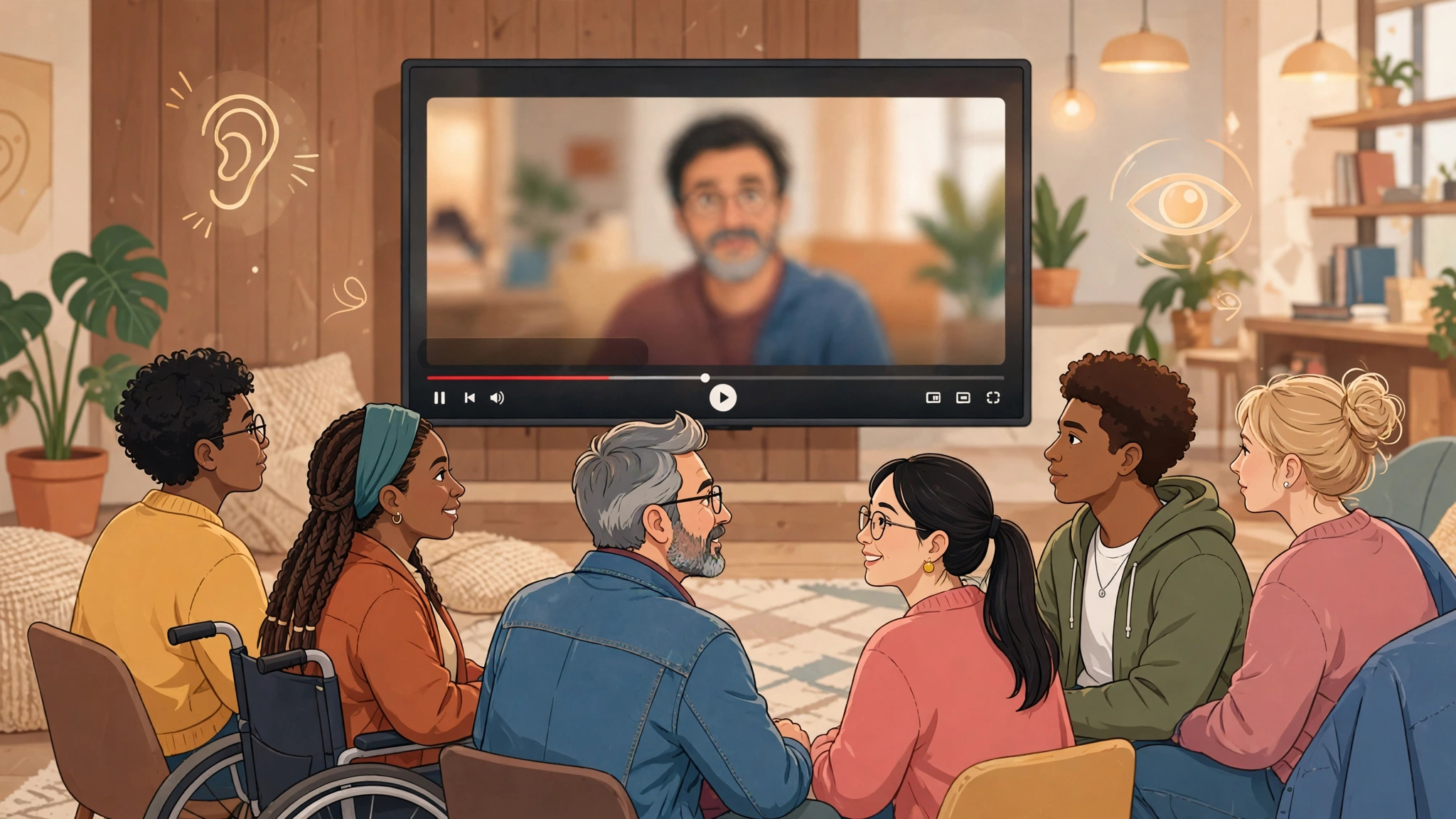
This guide to captions transcripts accessibility starts with a simple truth: over a billion people worldwide live with significant hearing loss, and hundreds of millions more watch videos with the sound off, learn in a second language, or process information better by reading than listening. Captions and transcripts for accessibility aren’t a nice-to-have feature, they’re how you make sure your content actually reaches everyone it’s meant for.
This guide covers who benefits, what the legal and standards requirements are, the difference between captions, subtitles, and transcripts, and exactly how to add them to your videos and podcasts.
[ez-toc]
Who Benefits from Captions and Transcripts
The audience for accessible media is much larger than most creators assume:
- Deaf and hard-of-hearing viewers. Roughly 430 million people worldwide have disabling hearing loss. For them, captions aren’t a preference, they’re the only way to access your content.
- Non-native speakers. Someone learning English (or any language) follows along far better with text support. Captions turn your video into a language-learning aid.
- People with auditory processing disorders, ADHD, or dyslexia. Many people hear fine but retain information better when they can read along. Transcripts also let them re-read a section instead of rewinding.
- Viewers in sound-sensitive environments. Offices, public transport, sleeping babies, the majority of social video is watched on mute. Captions decide whether a muted viewer watches or scrolls past.
- Older adults. Age-related hearing decline is gradual and extremely common; many people in this group don’t identify as hard of hearing but rely on captions daily.
- Anyone searching your content. Transcripts make audio searchable for everyone, including people who just want to find the one minute where you answered their question.
Accessibility features have a well-documented “curb-cut effect”: designed for one group, useful to everyone.
Captions vs Subtitles vs Transcripts: The Difference
These terms get used interchangeably, but they mean different things:
- Captions transcribe dialogue plus relevant non-speech audio: [applause], [phone ringing], [dramatic music]. They’re designed for viewers who can’t hear the audio at all.
- Subtitles transcribe only the dialogue, assuming the viewer can hear everything else. They’re designed for viewers who can hear but don’t understand the language.
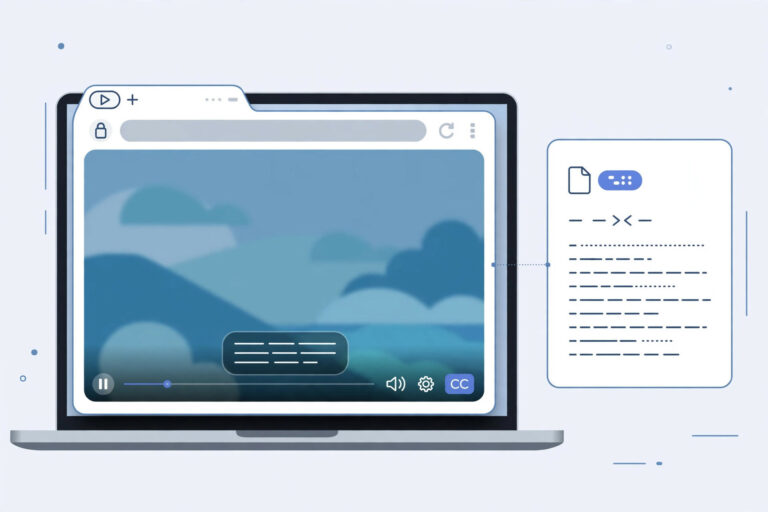
- Closed captions can be toggled on and off by the viewer (the “CC” button). Open captions are burned into the video permanently.
- Transcripts are the full text of the audio content as a separate document, every word spoken, usually with speaker labels, sometimes with descriptions of significant sounds.
For accessibility purposes, you want closed captions on your videos (so viewers can control them) and a transcript available for audio content like podcasts. Subtitles alone don’t meet accessibility standards because they omit non-speech information.
Legal and Standards Requirements
Depending on where you operate and who your audience is, captions may be a legal obligation, not just best practice. The W3C’s Web Accessibility Initiative defines the international accessibility standards:
- ADA (Americans with Disabilities Act). U.S. courts have increasingly applied the ADA to websites and online video. Businesses have faced lawsuits over uncaptioned video content on their sites.
- Section 508. U.S. federal agencies, and organizations receiving federal funding, must make electronic media accessible, which includes captioned video and transcripts for audio.
- WCAG 2.1 (Web Content Accessibility Guidelines). The international standard. Level AA requires captions for all prerecorded video (Success Criterion 1.2.2) and recommends transcripts and audio descriptions at higher levels. WCAG is referenced by accessibility laws in the EU, UK, Canada, and Australia.
- FCC rules. In the U.S., the FCC requires closed captioning on broadcast and most internet-delivered video programming, with specific accuracy, synchronicity, and completeness standards.
- European Accessibility Act. Applies across the EU to a wide variety of digital services, with enforcement ramping up through 2025–2026.
The practical takeaway: if your content serves the public or customers, caption it. The legal risk of ignoring accessibility is growing, and the cost of captioning keeps falling.
How to Add Captions to Your Videos: Step by Step
YouTube
- Upload your video to YouTube Studio.
- Go to Subtitles in the left menu, select your video, and add a language.
- YouTube generates automatic captions, use them as a starting point, not a finished product.
- Click the three dots next to the auto-generated track, download the SRT file, correct every error (names, technical terms, speaker identification), and re-upload the corrected file.
- Alternatively, upload your own SRT file from the start if you’ve had the video transcribed professionally.
Social Media (TikTok, Instagram, Facebook)
All major platforms now offer auto-caption stickers or settings, turn them on for every video, then review and fix errors before posting. Auto-captions on social are notoriously bad with names and jargon, and you can’t fix them after publishing on some platforms, so check before you hit post. For important content, burn accurate open captions into the video with an editor like Descript or CapCut before uploading.
Your Own Website or Embedded Player
If you host videos on your own site (Vimeo, Wistia, JW Player, or self-hosted HTML5 video), upload an SRT or WebVTT caption file alongside the video. Every serious video player supports caption tracks, it’s a standard feature, not an add-on. Test with captions on and off to make sure they display correctly.
Live Streams and Webinars
Live captioning (CART services or AI live captions) is harder than captioning recorded video, but platforms have improved: Zoom, Teams, and Google Meet all offer live captions, and YouTube supports live automatic captions for streams. For public-facing webinars, consider a professional CART captioner, AI still struggles with live multi-speaker audio.
How to Provide Transcripts for Audio Content
Podcasts and audio-only content need transcripts even more than video does, because there’s no visual channel at all:
- Transcribe every episode. Use Descript for a creator-friendly workflow, Rev’s human service for maximum accuracy, or Otter.ai for a budget option.
- Publish the transcript on the episode page, below your show notes, formatted with speaker names and section headings, not a raw text dump.
- Include non-speech information where it matters: [laughter], [music fades], long pauses. A transcript that only captures words is better than nothing, but describing significant sounds serves deaf-blind users who access transcripts via braille displays.
- Offer a downloadable version (PDF or plain text) for users who want to read offline or use their own assistive technology.
Accuracy Matters: Best Practices Checklist
Bad captions can be worse than no captions, they misinform. Follow this checklist:
- Aim for 99% accuracy. The FCC’s caption quality standards call for verbatim accuracy, and that’s the right target. Fix every error you can find.
- Identify speakers. Use >> or [Name]: when speakers change, especially with more than two voices.
- Describe meaningful sounds. [applause], [door slams], [upbeat music], anything a hearing viewer would use to understand the scene.
- Sync timing properly. Captions should appear and disappear in time with the audio. Lagging or early captions are disorienting.
- Keep lines readable. Maximum ~32 characters per line, 1–2 lines at a time, on screen long enough to read (roughly 3–7 seconds depending on length).
- Never rely on auto-captions alone for public content. They’re a draft. Publish the corrected version.
- Don’t censor or paraphrase. Accessibility means equivalent access, viewers deserve the actual content, including strong language and mistakes, not a cleaned-up summary.
Tools for Accessible Transcription and Captioning
- Rev, Human captioning and transcription at 99% accuracy, with caption files formatted for broadcast standards. The go-to when accuracy is non-negotiable.
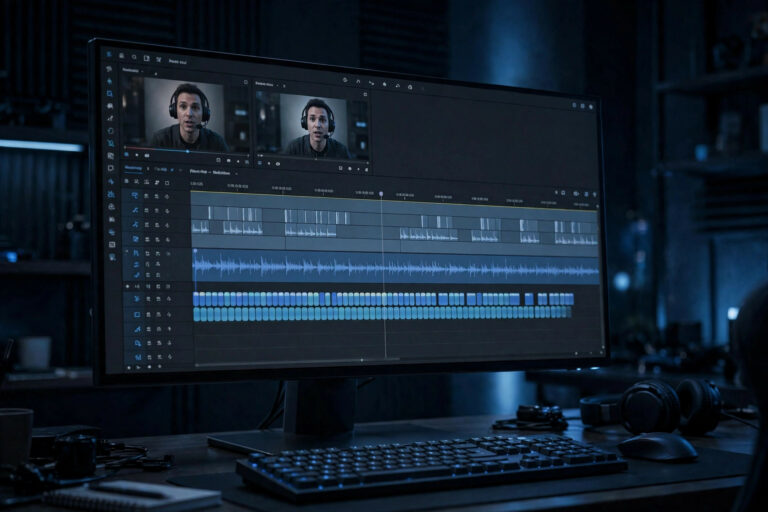
- Descript, Automatic transcription with text-based editing; export captions as SRT/VTT. Ideal for creators who edit their own videos.
- Otter.ai, Affordable live and recorded transcription with speaker identification; good for meetings, interviews, and webinars.
- YouTube Studio, Free auto-captions plus a solid editor for correcting them. The fastest path to captioned YouTube content.
- 3Play Media / Ai-Media, Enterprise-grade captioning services with guaranteed turnaround times and compliance documentation, for organizations with legal obligations.
Limitations & Edge Cases
- Auto captions alone do not meet accessibility expectations for accuracy. Uncorrected automatic captions can misstate names, terms, and speaker changes, so review and correct every caption before publishing public content.
- Transcripts need structure to be usable, not just raw text. Add headings, speaker labels, and descriptions of meaningful sounds so readers can scan, search, and follow who is speaking.
- Accessibility requirements differ for live and pre-recorded media. Live captions must keep pace with speech as it happens, while pre-recorded captions and transcripts can be reviewed, timed, and corrected before release.
- One format does not serve every viewer. Pair closed captions with a transcript for audio-only content, and check playback on the platforms where viewers will actually watch or listen.
Plan for these limits from the start: budget time for review, keep caption files with the media, and recheck captions and transcripts whenever the media is edited or republished.
Final Word
Captions and transcripts are among the rare improvements that simultaneously expand your audience, reduce legal risk, and boost SEO. Start with your most-watched content, work through the backlog systematically, and make captioning part of your publishing checklist going forward, not a retrofit. The billion people who need accessible media will notice, and so will everyone else who watches on mute.
To get time codes for your captions, try timestamped transcription free, it generates SRT/VTT-ready transcripts with no signup.
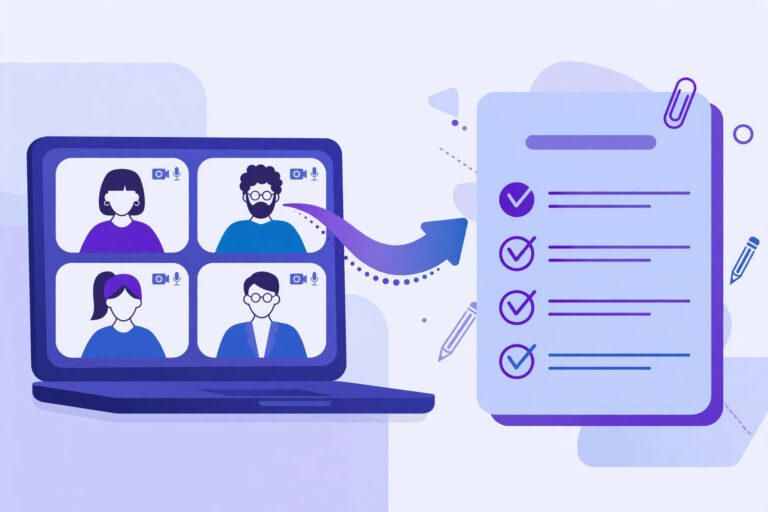
What’s the difference between captions and subtitles for accessibility?
Captions include dialogue plus non-speech audio information ([music], [laughter], speaker identification), giving deaf and hard-of-hearing viewers full access. Subtitles translate only dialogue and assume the viewer can hear everything else. For accessibility compliance, you need captions, not just subtitles.
Are automatic captions enough to meet accessibility standards?
No. WCAG and FCC standards require accurate, synchronized, complete captions. Auto-generated captions typically hit 80–90% accuracy with errors concentrated in names, terminology, and speaker attribution, exactly where accuracy matters most. Always review and correct them before publishing. If captions aren’t displaying correctly, see our guide to fixing subtitles not working on streaming services.
Do I need transcripts if my videos already have captions?
For video, accurate closed captions generally satisfy accessibility requirements. Transcripts become essential for audio-only content (podcasts, audiobooks) and are strongly recommended as a complement to video, they serve users of screen readers and braille displays, and they’re searchable.
Can I be sued for not captioning my videos?
In the U.S., businesses have faced ADA lawsuits over inaccessible websites including uncaptioned video. Risk is highest for e-commerce, education, healthcare, and government-adjacent organizations. The EU’s European Accessibility Act creates similar obligations in Europe. Captioning is far cheaper than litigation.
How much does professional captioning cost?
AI captioning runs from free (YouTube) to a few cents per minute. Human captioning services like Rev charge starting at $1.99 per minute of content (Prices checked 29 October 2026 on the vendor pricing pages). For a typical 10-minute video, professional human captions cost roughly $19.90, a small price for full accessibility and a reusable transcript.
Subtitles and Captions Generation for Accessibility
Subtitle generation and caption generation turn spoken audio into timed text that viewers can read while watching. Captions include sound information as well as speech, while subtitles usually show speech only. Both help people who are deaf or hard of hearing, people watching without sound, and people learning the language. When you generate subtitles automatically, check timing, line length, and speaker labels, and add sound descriptions where they matter for understanding.
Transcripts and captions also support accessibility requirements. The Web Content Accessibility Guidelines set expectations for captions and transcripts for online media, and our guide to WCAG caption requirements explains what Level AA asks for. A transcript on the same page as the media, with clear headings and speaker labels, makes the content usable for people who cannot hear the audio and for people who prefer reading.
What is the difference between captions and subtitles?
Captions show speech and important non-speech sounds, and are usually for viewers who cannot hear the audio. Subtitles usually show speech only, often as a translation, for viewers who can hear but do not understand the spoken language.