Direct answer: Bottom line: getting best Voice-to-Text Software for Mac right matters more than getting it fast. Here is what you need to know.
Key takeaways:
- Built-In Option 1: macOS Dictation: Every modern Mac includes Dictation, and for many users it is the entire answer.
- Built-In Option 2: macOS Voice Control: Voice Control is an accessibility feature that goes further than Dictation: it lets you control the entire Mac by voice, opening apps, clicking interface
- Third-Party Voice-to-Text Tools for Mac: Otter’s Mac story is its web app and integrations rather than a native app: record or import audio and get timestamped, speaker-labeled transcripts that
- Conclusion: Most Mac users should start with what Apple already gave them: Dictation for talking instead of typing, Voice Control for hands-free computing.
- Audio quality drives accuracy more than any feature, so start with a clean recording.
The best voice to text software for Mac is often already installed: macOS ships with capable dictation and voice control built in, free, working offline, and available in every app. But built-in tools have limits, they dictate rather than transcribe recordings, and they lack timestamps, speaker labels, and export options. This guide compares macOS’s built-in options against the best third-party tools, so you can decide whether you need to install anything at all.
[ez-toc]
Built-In Option 1: macOS Dictation
Every modern Mac includes Dictation, and for many users it is the entire answer. In general terms, here is what it does:
- System-wide dictation. Press the dictation shortcut (by default, pressing the Fn key twice, configurable in System Settings) and speak into any text field, documents, email, browsers, notes apps.
- On-device processing. On Apple Silicon Macs, dictation runs locally, which means it works offline and your voice data stays on your machine.
- Punctuation by voice. Say “comma,” “new paragraph,” or “question mark” to format as you dictate.
- Multiple languages. Dictation supports many languages, switchable in settings.
Its limits are the limits of dictation as a category: it converts live speech into text at the cursor. It does not transcribe audio files you already have, it does not timestamp anything, and it does not identify speakers. Long dictation sessions can also lose context or stop unexpectedly. If your need is “talk instead of type,” Dictation covers it. If your need is “turn this recording into a transcript,” you need something else.
Built-In Option 2: macOS Voice Control
Voice Control is an accessibility feature that goes further than Dictation: it lets you control the entire Mac by voice, opening apps, clicking interface elements, and dictating text. It downloads an on-device language model and works offline. For users with repetitive strain injuries or mobility limitations, it can replace the keyboard for extended periods. For pure transcription work, though, it is overkill: Dictation is simpler and faster for turning speech into text. Voice Control’s real value is hands-free computer control, with dictation as one component.
Third-Party Voice-to-Text Tools for Mac
Otter.ai
Otter’s Mac story is its web app and integrations rather than a native app: record or import audio and get timestamped, speaker-labeled transcripts that sync everywhere. It is the right step up when built-in dictation is not enough, you need transcripts of meetings, interviews, or recordings, not just live dictation. The free tier covers limited minutes per month; heavier use needs a paid plan. Pricing changes often, check the official site.
Descript
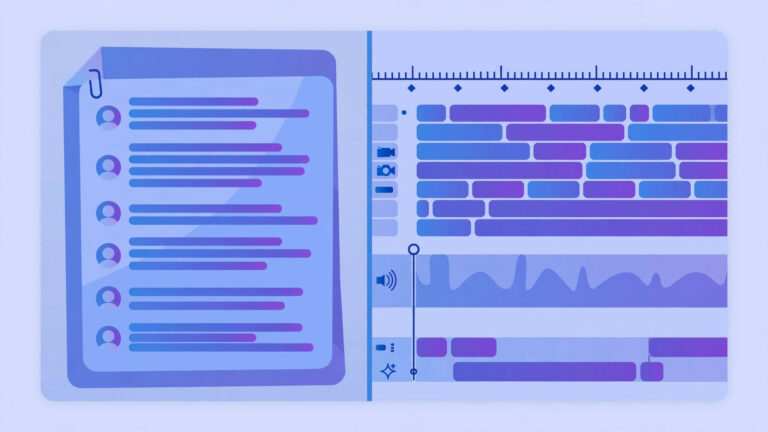
Descript runs natively on Mac and treats transcription as the center of an audio/video editing workflow: edit the transcript text and the underlying media follows. For Mac users who produce podcasts, videos, or course content, this is the most Mac-friendly way to work with transcripts. As a pure dictation replacement it is unnecessary, but as a transcription-plus-editing studio, it has no built-in rival.
Rev
Rev’s Mac angle is simple: when accuracy matters more than cost, its human transcription service delivers the cleanest transcripts in this roundup. You upload the recording through the browser; no Mac-specific software needed. Use it selectively for high-stakes recordings, client interviews, legal-adjacent material, publishable content, and use cheaper AI options for everything else.
Dragon (Nuance)
Dragon Professional was for years the premium dictation product on Mac, aimed at professionals who dictate all day, doctors, lawyers, writers. Note honestly: Nuance has shifted focus toward enterprise and cloud products in recent years, and Mac support for the classic Dragon desktop product has been limited. Before considering Dragon on a Mac today, verify current Mac compatibility and pricing on the official site, the landscape has changed, and built-in macOS Dictation now covers much of what Dragon once uniquely offered.
TranscriptionAid (Browser-Based, No Install)
Disclosure: TranscriptionAid is our own tool. A free transcription tool that runs in Safari or Chrome on your Mac, no install, no signup, no server upload. It fills the specific gap macOS leaves open: turning audio files you already have (recordings, voice memos transferred from iPhone, downloaded audio) into timestamped transcripts with SRT/VTT export. Where Dictation handles live speech and Descript handles media editing, TranscriptionAid handles the “transcribe this file” job at zero cost.
Best Voice-to-Text Software for Mac: Compared
| Tool | Free tier | Best for | Notable trade-off |
|---|---|---|---|
| macOS Dictation | Free, built in | Everyday dictation in any app | Dictates live speech only; no file transcription, no timestamps |
| macOS Voice Control | Free, built in | Hands-free Mac control + dictation | Overkill for pure transcription; accessibility-first design |
| Otter.ai | Limited free minutes | Meeting/interview transcripts with speaker labels | Free minutes are limited; cloud processing |
| Descript | Free tier with limits | Podcast/video editing via transcript | More editor than dictation tool; paid for full features |
| Rev | Pay as you go (AI + human) | Maximum accuracy for important recordings | Human tier is expensive per minute |
| Dragon (Nuance) | Paid | All-day professional dictation (historically) | Verify current Mac support, product line has shifted |
| TranscriptionAid | Free, no signup | Transcribing audio files in the browser | Browser-based; not a live dictation tool |
How to Choose: A Decision Tree
- “I want to talk instead of type.” → macOS Dictation. Free, offline, already installed. Try this first.
- “I can’t (or shouldn’t) use a keyboard.” → macOS Voice Control for full hands-free control.
- “I need transcripts of recordings or meetings.” → Otter.ai for speaker-labeled meeting transcripts, or TranscriptionAid (free, our tool) for quick file transcription.
- “I make podcasts or videos.” → Descript.
- “This recording must be perfect.” → Rev’s human transcription.
- “I dictate professionally all day.” → Verify Dragon’s current Mac offering, but test macOS Dictation first, it has closed much of the gap.
Getting Better Results on a Mac
- Use a decent microphone. The Mac’s built-in mic is fine for quiet rooms; a USB headset or external mic noticeably improves accuracy in noisy environments. This matters more than software choice.
- Enable on-device dictation. In System Settings, confirm dictation uses on-device processing where available, it is faster, works offline, and keeps voice data local.
- Learn the punctuation commands. “New line,” “new paragraph,” “comma,” “period,” and “quote…end quote” turn raw dictated text into usable drafts.
- For file transcription, mind the format. Browser tools accept common formats (MP3, WAV, M4A); convert unusual formats first rather than fighting upload errors.
- Always review. No voice-to-text output, built-in or third-party, should be sent, published, or quoted without a human read-through. Homophones and proper nouns are the usual failure points.
Frequently Asked Questions
Does Mac have built-in voice-to-text?
Yes. macOS includes Dictation (system-wide, on-device on Apple Silicon) and Voice Control (full hands-free computer control). Both are free and work offline. They handle live dictation; they do not transcribe audio files.
What is the best free voice-to-text software for Mac?
macOS Dictation, it is free, built in, private (on-device), and good enough for everyday dictation. For transcribing audio files free, a browser tool like TranscriptionAid (our own free tool) covers what Dictation cannot.
Can macOS Dictation transcribe audio files?
No. Dictation converts live microphone input into text at the cursor. To transcribe a recording or audio file on a Mac, use a transcription service: Otter.ai, Rev, Descript, or a free browser tool like TranscriptionAid.
Is Dragon still available for Mac?
Nuance’s focus has shifted toward enterprise and cloud products, and the classic Dragon desktop line’s Mac support has been limited in recent years. Check Nuance’s official site for the current Mac-compatible offering before purchasing, and test free macOS Dictation first, since it now covers much of the same ground.
How do I turn on dictation on a Mac?
Open System Settings, go to Keyboard, and enable Dictation. You can choose the shortcut (default is pressing Fn twice) and the language. On Apple Silicon Macs, on-device processing is used automatically where supported.
Which is better for Mac: Otter.ai or Descript?
Different jobs. Otter.ai is better for straight transcription of meetings and interviews with speaker labels. Descript is better if you edit audio or video and want the transcript as your editing interface. Many Mac users reasonably use both.
Conclusion
Most Mac users should start with what Apple already gave them: Dictation for talking instead of typing, Voice Control for hands-free computing. Only reach for third-party tools when you hit the built-in ceiling, transcribing recordings, labeling speakers, or editing media through text. For the common “transcribe this audio file” gap, try TranscriptionAid free in your browser: no install, no signup, timestamps and SRT/VTT export. Disclosure: TranscriptionAid is our own tool.