Direct answer: To transcribe a YouTube Short, open it in a desktop browser, click the three dots under the player, and choose “Open transcript.” On mobile, use a free transcript website or a transcription app, because the built-in transcript viewer is hard to reach in the Shorts player.
Key Takeaways:
- Shorts often have auto-captions, but the mobile Shorts player hides the transcript viewer.
- The easiest path is opening the Short in a desktop browser and using the built-in transcript panel.
- Free transcript websites work on phones and handle Shorts links the same as regular videos.
- Short clips are quick to transcribe, but slang, music, and fast speech lower accuracy.
- For the full process on regular videos too, see youtube transcription.
Table of Contents
- Why Shorts Are Tricky
- Method 1: Desktop Browser (Easiest)
- Method 2: Free Transcript Website (Best for Mobile)
- Method 3: Screen Record and Transcribe
- Method 4: Transcription Apps
- Shorts-Specific Challenges
- Cleaning Up a Short Transcript
- Use Cases for Shorts Transcripts
- What Creators Should Know
- Transcripts in Other Languages
- Frequently Asked Questions
Why Shorts Are Tricky
YouTube Shorts are vertical videos under three minutes. They were built for phones first. The Shorts player is stripped down, with fewer buttons than the regular player.
On desktop, the three-dot menu with “Open transcript” still appears under a Short. On mobile, it often does not. You swipe through Shorts in a full-screen feed, and the transcript option is missing or buried.
Shorts also tend to have loud music, quick cuts, and slang. Auto-captions handle clean speech well, but they struggle with these. Expect more errors than on a calm talking-head video.
Method 1: Desktop Browser (Easiest)
This is the most reliable method. It uses YouTube’s own tools, so nothing extra is needed.
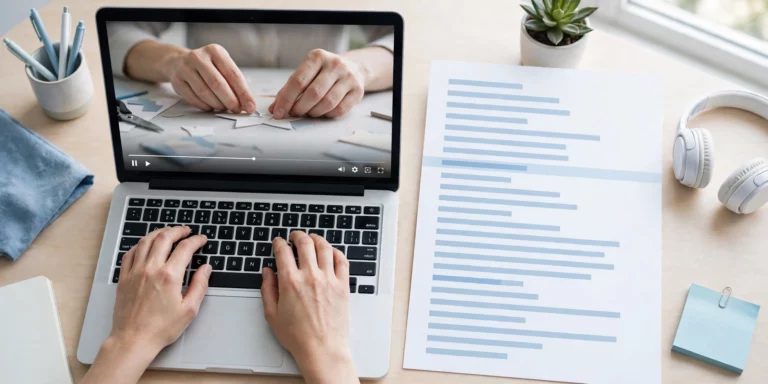
Open the Short in a desktop browser. You can paste the Shorts link into Chrome or any browser on a computer. Under the video player, click the three dots. Choose “Open transcript.” The captions appear in a side panel with timestamps.
Select the text, copy it, and paste it where you need it. This method is free and safe. It works whenever the Short has captions, which most do.
Method 2: Free Transcript Website (Best for Mobile)
If you are on your phone, a transcript website is the fastest route. These sites work in any mobile browser.
Tap Share on the Short, then Copy Link. Open the transcript site in your browser and paste the link. Press fetch. The captions appear on screen, ready to copy or download.
This works because Shorts are just YouTube videos with a different URL format. The site reads the captions the same way. For more detail on these tools, youtube transcription walks through each option.
Method 3: Screen Record and Transcribe
Some Shorts have no captions at all. In that case, no downloader or viewer can help. You need to capture the audio and transcribe it.
On iPhone, use the built-in screen recorder from Control Center. On Android, most phones have a screen recorder in the quick settings panel. Play the Short while recording.
Then run the recording through a transcription app or service. It listens to the audio and writes out the words. This takes a few minutes but works on any Short, captions or not.
Method 4: Transcription Apps
Several free apps transcribe audio from your phone. You can play the Short on one device and let the app listen, or feed it a screen recording.
Live transcribe apps show words on screen in real time. This is handy for a quick quote. For a clean copy you can save, upload the recording to the app instead.
Free tiers typically cover short clips easily, since Shorts are brief. Check what the app offers before you commit to anything.
Shorts-Specific Challenges
Music is the biggest problem. Many Shorts layer trending audio under speech. Transcription tools may pick up lyrics instead of the speaker, or mix the two together.
Fast speech is next. Creators talk quickly to fit ideas into a short clip. Auto-captions drop words when speech is rushed. Slang and brand names also confuse them.
Multiple speakers in a short clip cause trouble too. The transcript may run everyone’s words together with no labels. For important content, a quick manual cleanup fixes most of this.
Cleaning Up a Short Transcript
Because Shorts are brief, cleanup is quick. Read through the text once and fix obvious errors.
Remove timestamp clutter if you only need the words. Fix names, brands, and slang the tool misheard. Break the text into lines that match the pacing of the video.
A sixty-second Short usually needs only a few minutes of cleanup. That is the upside of the format.
Use Cases for Shorts Transcripts
Why bother transcribing a clip under three minutes? The reasons add up.
Students capture quick explainers to review later. A sixty-second math trick is easier to study as text. You can paste it into notes and highlight the steps.
Marketers track trends by transcribing viral Shorts. The text reveals hooks, phrases, and formats that work. Reading ten transcripts is faster than watching ten videos.
Language learners use Shorts transcripts for practice. Short clips with text let you match words to sounds. Pause, repeat, and compare until it clicks.
Journalists and researchers quote Shorts accurately. A transcript gives exact wording with timestamps, which beats guessing from memory.
What Creators Should Know
If you make Shorts, adding your own captions helps everyone. Uploaded captions are far more accurate than auto-generated ones. They also make your content accessible.
YouTube’s auto-captions appear on most Shorts by default. But reviewing them takes little time and improves the experience for viewers who read along. It also means anyone transcribing your Short gets clean text, as explained in youtube transcription.
Transcripts in Other Languages
Many Shorts have captions in more than one language. YouTube auto-translates captions when the viewer picks a different language in settings.
To get a translated transcript, open the Short on desktop and open the transcript panel. The panel follows your caption language setting. Change it in the player settings first, then open the transcript.
Machine translation is rough but readable. It works for getting the gist. For anything important, have a fluent speaker review it.
Transcript websites sometimes let you pick a language before fetching. Look for a language dropdown near the download button.
Frequently Asked Questions
Why can’t I find the transcript option on a Short?
The mobile Shorts player hides it. The three-dot menu with “Open transcript” appears on desktop browsers but is often missing in the app. Open the Short in a desktop or mobile browser instead of the app.
Do all Shorts have captions?
Most do, because YouTube auto-generates captions for Shorts like regular videos. But very new uploads may not have them yet, and the creator can turn them off. If no captions exist, use the screen record method.
Can I get timestamps with a Short transcript?
Yes. The built-in transcript panel shows timestamps for every line. Transcript websites often offer an SRT download, which keeps timestamps too. Plain text copies drop them.
How accurate are Short transcripts?
It varies. Clear speech in a quiet clip transcribes well. Music, slang, fast talking, and heavy accents lower accuracy. A quick manual pass catches most errors since the clips are short.
Is there a length limit for transcribing Shorts?
Shorts are under three minutes, so length is rarely an issue. Free tools and free app tiers typically handle clips of this size without trouble.