Direct answer: Bottom line: getting how to add Captions to YouTube Shorts right matters more than getting it fast. Here is what you need to know.
Key takeaways:
- Option 1: YouTube’s Built-In Auto-Captions: YouTube automatically generates captions for most Shorts, just as it does for long-form videos.
- Option 2: Burned-In Captions (The Creator Standard): Burned-in captions are rendered into the video pixels themselves, always visible, always styled your way, working even for viewers who never touch the CC
- Readability Rules for Vertical Video: Phone screens punish every captioning sin that desktop forgives.
- Timing and Pacing for Shorts: Shorts caption timing follows the content’s energy:
- Audio quality drives accuracy more than any feature, so start with a clean recording.
YouTube Shorts live or die in the first two seconds, and a huge portion of that audience is watching with the sound off, in public, on a phone held six inches from their face. Captions on Shorts aren’t an accessibility nice-to-have; they’re a retention tool. The viewer who can follow your Short on mute in a waiting room is a viewer who doesn’t swipe away.
[ez-toc]
This guide covers both caption paths for Shorts: YouTube’s built-in auto-captions and burned-in captions from editors like CapCut, plus the readability rules that make or break captions on vertical video.
Option 1: YouTube’s Built-In Auto-Captions
YouTube automatically generates captions for most Shorts, just as it does for long-form videos. Viewers toggle them with the CC button. This costs you nothing, but the captions inherit all of auto-captioning’s weaknesses: misheard words, awkward line breaks, and timing that’s merely okay.
To check and improve them:
- Open YouTube Studio → Subtitles → select your Short.
- Review the auto-generated track. For a 30-second Short, this takes two minutes.
- Fix misheard words and bad line breaks directly in the editor, then publish.
For Shorts, this review pass is short enough that there’s no excuse to skip it. A single wrong word in a 20-second video is proportionally far more damaging than one wrong word in a 20-minute video.
Limitations of built-in captions on Shorts: you can’t control the caption style (font, size, position are YouTube’s choice), and some viewers never enable captions at all, your Short plays silent and captionless for them. That’s why most serious Shorts creators use Option 2.
Option 2: Burned-In Captions (The Creator Standard)
Burned-in captions are rendered into the video pixels themselves, always visible, always styled your way, working even for viewers who never touch the CC button. This is what you see on the vast majority of high-performing Shorts: bold, punchy, often word-by-word highlighted captions.
The workflow:
- Edit your Short in CapCut, Premiere, or your editor of choice.
- Generate auto captions in the editor (CapCut: Text → Auto captions; see our CapCut auto-caption guide for the full steps).
- Clean up errors, names, homophones, jargon. On a Short this takes minutes.
- Style aggressively for vertical. This is where Shorts captioning differs from long-form (more below).
- Export the video with captions burned in, then upload to YouTube as a Short.
The trade-off: burned-in captions can’t be turned off, can’t be translated by YouTube’s auto-translate, and aren’t indexed as text the way a subtitle track is. Many creators do both, burned-in captions for the visual punch plus a proper subtitle track uploaded in YouTube Studio for accessibility and indexing.
Readability Rules for Vertical Video
Phone screens punish every captioning sin that desktop forgives. The rules:
Keep captions to 1–2 lines, few words per line. On a 9:16 screen, a three-line caption eats a fifth of the frame. Aim for 3–6 words per caption card for punchy Shorts pacing, fewer words per card also creates the snappy caption-change rhythm viewers associate with good Shorts.
Make text BIG. Captions sized for desktop YouTube are unreadable on phones. Your caption text should be legible in a thumbnail-sized preview, if you squint, it’s too small. Bold weights read better than regular at small sizes.
Position in the safe zone. The vertical frame has hostile territory:
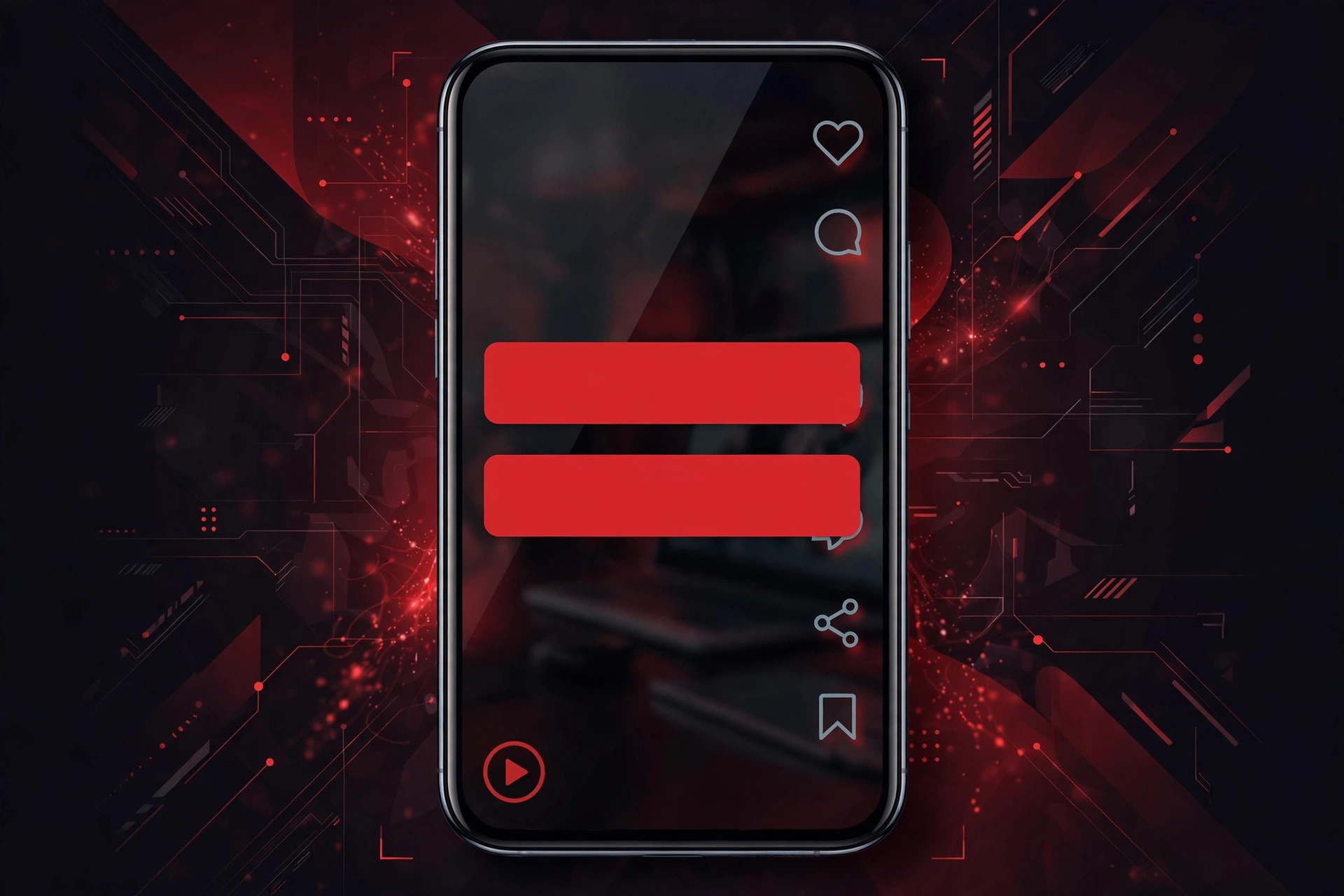
- Bottom ~15%: YouTube’s progress bar, video title, and action buttons live here. Captions placed at the very bottom get covered.
- Right edge: the like/comment/share button column overlays the right side.
- Top: the Shorts UI header.
The safe zone is roughly the vertical center to upper-middle of the frame. Center-positioned captions are the Shorts norm, they sit over the speaker’s torso, clear of all UI chrome. Test by previewing with YouTube’s UI in mind, not just your editor’s clean preview.
Contrast is non-negotiable. White text with a black stroke, or text on a semi-transparent black box, survives any background. Fancy thin fonts in brand colors over bright footage is how captions become decoration instead of information.
Mind the speaker’s face. Center captions can cover mouths, which matters for viewers who lip-read and for the general sense of watching a person talk. Nudge captions to sit just below the chin or over the chest rather than across the face.
Timing and Pacing for Shorts
Shorts caption timing follows the content’s energy:
- Match the speech rhythm. Captions should change as the words are spoken, not one static block for the whole Short, and not flashing so fast they’re unreadable. The popular word-by-word highlight style works because it paces itself to speech.
- Minimum display time still applies. Even in a fast Short, a caption visible for under ~0.5 seconds is a subliminal flash, not a caption. If your speech is that rapid, merge words into slightly longer cards.
- Emphasize the hook. The first caption card appears in the first second and often determines whether a muted viewer keeps watching. Make sure it’s your strongest line, perfectly timed, not a half-second “hey guys” that vanishes before it’s read.
The Hybrid Approach: Burned-In + Subtitle Track
The best-practice setup for Shorts that matter:
- Burn styled captions into the video for the visual experience (the retention play).
- Upload a clean SRT subtitle track in YouTube Studio for accessibility, auto-translate, and indexing (the reach play).
This covers every viewer: the mute-scroller sees your designed captions, the deaf viewer gets accurate toggleable captions, the non-English speaker gets auto-translate, and YouTube’s systems get clean text to understand your content. The extra five minutes to upload the SRT is worth it on any Short you’re promoting.
Common Shorts Captioning Mistakes
- Captions hidden behind YouTube’s UI. The #1 rookie error, bottom-placed captions vanish under the progress bar and title. Preview in the actual Shorts player before publishing.
- Auto captions published unchecked. One misheard word in a Short is a comment-section meme. Review the 30 seconds; it takes less time than reading this sentence took.
- Inconsistent styling across a series. If you post Shorts regularly, lock a caption template (font, size, color, position) and reuse it. Visual consistency builds channel recognition.
- Captioning every “um.” Clean up filler words in Shorts aggressively, the format rewards tightness, and transcribed stumbles read as sloppy rather than authentic.
- Forgetting the title and description. Captions handle the in-video text; the Short still needs a real title and description for discovery. Don’t make the caption do the title’s job.
Frequently Asked Questions
Does YouTube auto-caption Shorts?
Yes, YouTube generates automatic captions for Shorts like any other video, subject to the usual accuracy caveats. Review and correct them in YouTube Studio, or burn in your own styled captions for full control.
Should I burn captions into my Shorts or use YouTube’s caption track?
Burned-in for the visual/retention benefit (most viewers never enable CC); plus an uploaded subtitle track for accessibility, translation, and indexing. Doing both is the professional standard.
Why are my Shorts captions cut off on some phones?
Likely the safe-area problem, captions placed too low (under YouTube’s progress bar/title overlay) or too far right (under the action buttons). Keep captions in the vertical center band and preview on an actual phone.
Can I add captions to a Short after uploading?
Yes for the subtitle-track path: YouTube Studio → Subtitles → add/edit anytime. No for burned-in captions, those are part of the video file, so you’d need to re-upload (which resets the Short’s metrics; get it right before publishing).
Do captions actually improve Shorts performance?
They improve retention among mute viewers, who are a large share of Shorts traffic, and retention drives the Shorts algorithm. Captions also broaden accessibility. It’s among the cheapest performance levers available.
What caption style works best for Shorts?
Bold sans-serif, large size, high contrast (white on black stroke or box), centered in the safe zone, changing in rhythm with speech. Word-by-word highlighting is popular because it paces reading to speech, but clean full-phrase cards outperform gimmicky animations for most content.
Conclusion
Captioning YouTube Shorts is a two-layer job: burned-in captions designed for vertical viewing (big, bold, centered in the safe zone, paced to speech) for retention, plus a proper subtitle track in YouTube Studio for accessibility and reach. The built-in auto-captions are a fine starting point but never the finished product, a two-minute review pass on a Short is the highest-ROI editing step you’re probably skipping.
Get the captions right and your Short works in a noisy café, a quiet library, and everywhere in between. That’s not accessibility overhead; that’s audience.
Sources and further reading: YouTube Help