Notion Calendar is a powerful, standalone productivity application that bridges the gap between your task management and scheduling by syncing your Notion database items directly with your Google Calendar. Designed to eliminate context switching, this tool allows you to visualize project deadlines, sprint tasks, and meetings in one interface, enabling you to drag, drop, and edit scheduled items seamlessly to optimize your daily workflow and project execution.
What is Notion Calendar?
Notion Calendar is a standalone application that functions as a bridge between your task management system and your daily appointments. Unlike traditional calendar apps that act as isolated silos for time slots, this tool allows you to view your Notion database items—like project deadlines, content calendars, or sprint tasks—directly alongside your Google Calendar events.It’s not just a view-only integration. You can drag and drop items, edit dates, and adjust timing without ever leaving the interface. For many users, this solves the persistent problem of “context switching,” where you spend half your day moving between browser tabs just to confirm if you have enough time to finish a task before your next meeting.
Getting Started: Integrating Your Existing Tools
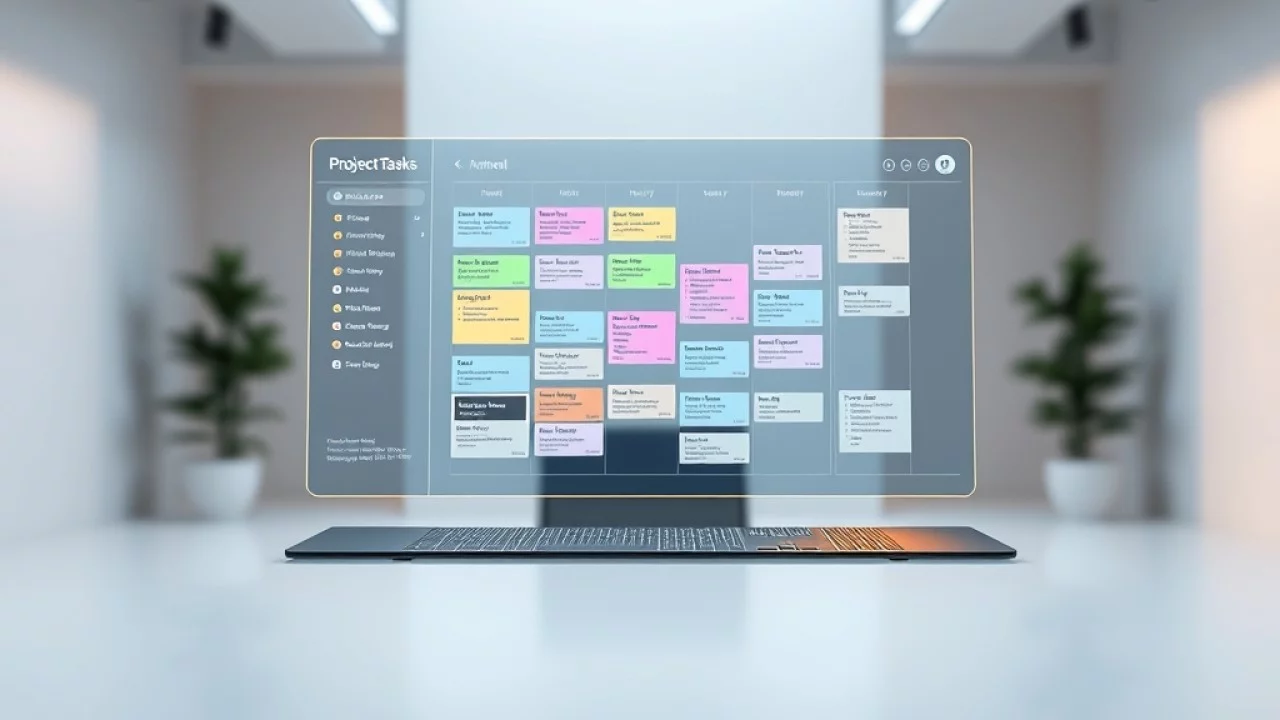
The first step to making the most of Notion Calendar is the initial setup. Because it relies on a two-way sync with Google Calendar, the onboarding process is relatively straightforward. Once you connect your primary Google account, the app pulls in your existing events, effectively creating a unified dashboard.The real power, however, comes from linking your Notion workspace. When you connect your workspace, you gain the ability to pull any database that has a date property into your calendar view. This is useful for teams managing project timelines or individuals tracking personal commitments. By centralizing these, you eliminate the “hidden” tasks that usually get buried in project pages.
Why integration matters
Most productivity tools fail because they become another place where you have to manually copy and paste information. Notion Calendar avoids this by treating your database entries as live objects. If you change a deadline on a task in your project board, it updates on your calendar immediately. This removes the manual labor of updating two separate systems, which is usually where most people fall behind.
Connecting Notion Databases to Your Calendar
Connecting a database is the moment where the tool shifts from being a basic calendar to a powerful productivity engine. To get started, you simply navigate to the ‘Connect’ settings within the app and select the specific database you want to visualize.Once connected, you can choose which date properties to display. If your database has multiple date fields—such as ‘Start Date’ and ‘Due Date’—you can configure how these appear on your timeline. This is particularly helpful for project managers who need to see the duration of a task rather than just a single completion point.
Managing complex workflows
If you are using Notion to manage a content pipeline, for example, you can see your publishing dates alongside your team syncs. This prevents the common issue of scheduling deep-work sessions during times when you are likely to be interrupted by recurring meetings. By visualizing these side-by-side, you can better protect your focus time.
Advanced Time Blocking Strategies
Time blocking is a technique favored by high-performers, but it is notoriously difficult to maintain if your task list is separate from your calendar. With Notion Calendar, you can drag an unscheduled task from your sidebar onto your calendar grid to “block” time for it.When you block time for a specific task, you are essentially making a commitment to yourself. The app allows you to adjust the duration of these blocks easily. If a task takes longer than expected, a simple click-and-drag extends the block, and the corresponding date property in your Notion database updates in real-time.
Reducing meeting fatigue
Another underutilized feature is the ability to share your availability without sending a link to a third-party booking tool. You can select specific blocks of time directly from your calendar and share them as a scheduling link. When someone books a slot, the event is automatically added to your calendar and, if you choose, linked to a page in your Notion workspace for notes or preparation.
Best Practices for Personal and Professional Balance
The danger of having everything in one place is that your workspace can quickly become overwhelming. To avoid this, use the filtering and toggle features. You don’t need to see every single task from every project at all times.Create specific views for your calendar. Perhaps you have a view for “Deep Work” that only shows major project milestones, and another view for “Daily Ops” that includes your smaller, recurring tasks. By toggling these on and off, you keep your view clean and focused on what matters for the current day or week.Lastly, be mindful of your “white space.” It is easy to fill every available slot with tasks, but a productive calendar needs gaps. Use the calendar to identify where you are over-committing and adjust your workload before the week begins.
Conclusion
Notion Calendar isn’t just about tracking where you need to be; it’s about aligning your time with your priorities. By connecting your tasks and your schedule, you create a system that reflects the reality of your workload. Whether you are managing a complex team project or simply trying to get a better handle on your personal to-do list, the key is to keep the integration simple and ensure your digital calendar serves your actual goals, rather than just acting as a list of obligations.
External Resources & Further Reading
For additional industry standards and official technical guidelines, explore the following trusted external resources:
Related Articles & Guides
Explore related technical guides and analysis from our publishing library: