Direct answer: Bottom line: getting best Dictation Software for Windows right matters more than getting it fast. Here is what you need to know.
Key takeaways:
- Dictation vs. transcription: know which you need: People use “dictation software” to mean two different things:
- Dictation software for Windows compared: Windows includes voice typing out of the box, press Win+H in any text field and start speaking.
- Windows Voice Typing: the built-in option: Windows includes voice typing out of the box, press Win+H in any text field and start speaking.
- Dragon: the professional dictation standard: Dragon (from Nuance) has been the serious dictation software on Windows for decades.
- Audio quality drives accuracy more than any feature, so start with a clean recording.
The best dictation software for Windows depends on what you’re actually dictating: live speech into documents, or recordings you need transcribed to text? Those are different jobs, and Windows users have good options for both, including a capable built-in tool that’s already on your PC. This roundup covers Windows’ built-in voice typing, Dragon, and modern browser/AI alternatives, with an honest comparison so you can skip the trial-and-error.
[ez-toc]
As always with software roundups: pricing changes often, so check official sites for current rates before buying anything.
Dictation vs. transcription: know which you need
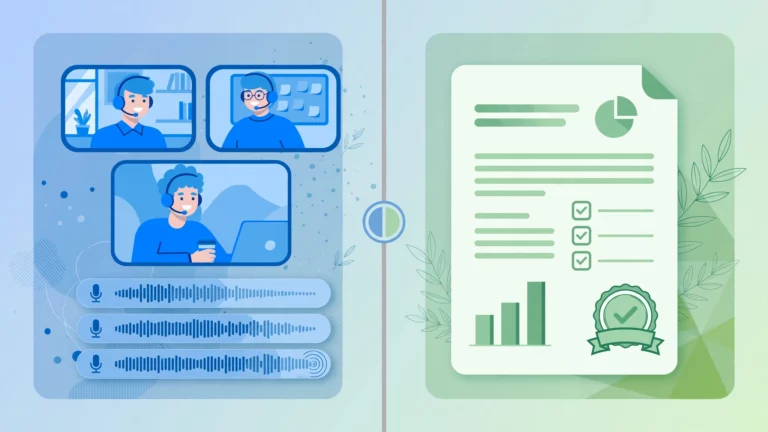
People use “dictation software” to mean two different things:
- Live dictation, you speak into a microphone and words appear in your document in real time. For writing emails, reports, and notes hands-free.
- Transcribing recordings, you have an audio file (a voice memo, an interview, a lecture) and you need it as text. This is transcription, not dictation, and different tools serve it.
This article covers both, because Windows users search for both under “dictation software.” Each section says clearly which job the tool does.
Dictation software for Windows compared
| Tool | Free tier | Best for | Notable trade-off |
|---|---|---|---|
| Windows Voice Typing (built-in) | Free (included) | Everyday live dictation | Live speech only; not for audio files |
| Dragon (Nuance) | Paid | Heavy-duty professional dictation | Paid; dictation-focused, not file transcription |
| TranscriptionAid (browser) | Free, no signup | Transcribing dictation recordings to text | Transcription, not live dictation |
| Microsoft Word Dictate | Free (with Microsoft 365) | Dictating directly into Word documents | Requires Microsoft 365; needs internet |
| Whisper-based local tools | Free (open source) | Private transcription of recordings | Setup effort; transcription, not live dictation |
| Google Docs voice typing | Free | Dictating in a browser document | Browser-only; Google account needed |
Windows Voice Typing: the built-in option
Windows includes voice typing out of the box, press Win+H in any text field and start speaking. It’s genuinely useful: solid accuracy for clear speech, automatic punctuation options, and voice commands for editing (“delete that,” “new line”). For everyday dictation, emails, documents, chat messages, it’s the first thing to try because it’s already installed and free.
Limitations are honest ones: it’s live dictation only (it won’t transcribe an audio file), it needs an internet connection for the best accuracy, and it lacks the custom vocabularies and deep voice training of paid tools. But for most people’s actual dictation needs, it’s enough. Try this before spending money.
Dragon: the professional dictation standard
Dragon (from Nuance) has been the serious dictation software on Windows for decades. It’s built for people who dictate all day, lawyers, doctors, writers, anyone with RSI or accessibility needs. Compared to the built-in tool, Dragon offers deeper voice training, custom vocabularies (legal, medical), and more granular voice control of the PC.
The honest assessment: Dragon is paid software for heavy users. If you dictate occasionally, Windows Voice Typing covers you for free. If you dictate for hours daily, have specialized vocabulary, or need accessibility-grade control, Dragon’s depth justifies a look. Note the product line has evolved over the years, check Nuance’s current offerings to see which edition fits, and verify current pricing on the official site.
Microsoft Word Dictate and Google Docs voice typing
If you live in a word processor, dictation is built in:
- Word Dictate (Microsoft 365), a dictate button right in Word, Outlook, and PowerPoint. Convenient if you’re already paying for Microsoft 365; it requires an internet connection.
- Google Docs voice typing, free under Tools > Voice typing in Chrome. Surprisingly capable, and free with a Google account. Browser-only, so it’s not a system-wide solution.
Both are live-dictation tools, not file transcribers. Choose based on where you write.
For recordings: transcribe dictation recordings to text free
Here’s the job the tools above don’t do: you recorded a voice memo or a meeting on your phone, and now you need it as text. That’s transcription, and Windows users have free options:
- TranscriptionAid, a free browser-based transcription tool: drop in your recording, get a timestamped transcript with SRT/VTT export. No signup, no server upload (processing happens in your browser), handles large files. This is the most direct free answer to “transcribe my dictation recording.” (Disclosure: TranscriptionAid is our own tool.)
- Whisper-based local apps, free, open-source, run on your PC with no upload. More setup, maximum privacy, no usage caps.
- Word’s Transcribe feature, Microsoft 365’s Word can transcribe audio files (separate from Dictate). Useful if you already subscribe; check current limits on Microsoft’s site.
Don’t try to “dictate” a recording by playing it into a microphone for live dictation software, the quality loss from speaker-to-mic makes a bad job worse. Use a real transcription tool for recordings.
How to choose
- Occasional live dictation → Windows Voice Typing (Win+H). Free, already installed.
- Dictating inside Word/Outlook → Word Dictate if you have Microsoft 365.
- Dictating in a browser → Google Docs voice typing. Free.
- All-day professional dictation, custom vocabulary, accessibility → Dragon. Verify current editions and pricing.
- Transcribing a recording to text → TranscriptionAid (free, no signup) or a local Whisper app for privacy.
- Sensitive recordings → local Whisper-based tools; audio never leaves your PC.
Tips for better dictation accuracy
Whichever tool you pick, these habits matter more than the software brand:
- Use a decent microphone. A headset mic beats a laptop mic by a wide margin. Most “bad accuracy” complaints are hardware problems.
- Reduce background noise. Close the door; turn off the TV. Dictation software can’t filter what you won’t.
- Speak at a natural pace. Don’t over-enunciate like a robot, and don’t mumble. Punctuation commands (“comma,” “period,” “new paragraph”) become second nature quickly.
- Train the tool if it offers training. Dragon’s voice profiles improve with use; invest the setup time if you dictate daily.
- Proofread anyway. No dictation software is perfect, names, homophones, and numbers need a human eye.
Frequently Asked Questions
What is the best free dictation software for Windows?
Windows Voice Typing (Win+H), it’s built into Windows, free, and good enough for everyday dictation. For dictating in documents specifically, Google Docs voice typing is a strong free alternative.
Is Dragon still the best dictation software?
Dragon remains the deepest option for heavy-duty professional dictation with custom vocabularies, but most casual users won’t need it, the built-in Windows tool covers everyday needs for free. Check Nuance’s current product lineup and pricing before buying.
How do I transcribe a voice recording to text on Windows for free?
Use a transcription tool, not dictation software: TranscriptionAid is a free browser-based option with no signup (drop in the file, get a transcript), and Whisper-based local apps transcribe privately on your PC for free. (Disclosure: TranscriptionAid is our own tool.)
Does Windows dictation work offline?
Windows Voice Typing works best with an internet connection; offline capability depends on your Windows version and installed language packs. For fully offline speech-to-text, local Whisper-based tools are the reliable route.
Can I dictate into any application?
Windows Voice Typing (Win+H) works in nearly any text field system-wide. Word Dictate and Google Docs voice typing only work inside their respective apps.
Why is my dictation accuracy bad?
Almost always the microphone or the environment: use a headset mic, reduce background noise, and speak naturally. If accuracy is still poor after that, consider whether a trainable tool like Dragon fits your volume of use.
Conclusion
Most Windows users should start with what’s free and built in: Win+H for live dictation, and a free transcription tool for recordings. Only step up to Dragon when your dictation volume or vocabulary demands it, and check current pricing first. Match the tool to the job (live speech vs. recorded audio), get a decent microphone, and you’ll spend less and get better results than chasing feature lists.
Need a recording turned into text right now, free, with no signup? Try the browser transcription tool at TranscriptionAid. (Disclosure: TranscriptionAid is our own tool.)
Related guides: transcribe iphone voice memo to text.