Direct answer: The quick version: how to transcribe WhatsApp Voice Messages to Text is easier than most people expect once you know the key facts. Details below.
Key takeaways:
- Method 1: WhatsApp’s Built-In Voice Message Transcripts (Easiest): WhatsApp now includes its own transcription feature.
- Method 2: Your Phone’s Built-In Live Captions: Both major mobile operating systems can caption any audio playing on your device, including WhatsApp voice notes.
- Method 3: Dedicated Transcription Apps: If you transcribe voice notes regularly, a dedicated app is worth installing.
- Method 4: Transcription Chatbots (Fastest for One-Offs): Several chatbots can transcribe audio you forward to them:
- The right choice depends on your volume: occasional use favors free tiers, heavy use favors paid plans.
We’ve all been there: a five-minute voice note arrives when you can’t listen, you’re in a meeting, on a train, or your phone is on silent. Learning how to transcribe WhatsApp voice message to text solves this completely. Depending on your phone, you can do it with WhatsApp’s own built-in feature, your operating system’s live captions, a free app, or a quick desktop workflow.
This guide covers every reliable method, step by step, plus accuracy tips and the privacy trade-offs of each approach so you can pick the right one.
[ez-toc]
Organizing Transcribed Voice Notes
Once you start transcribing voice notes regularly, organization becomes the next challenge. A simple system: create a note for each important conversation thread, paste the transcript with the date, and tag it with relevant keywords. Months later, searching for a name or place will surface exactly what you need.
For business use, transcribed voice notes can serve as informal meeting minutes. When a client explains requirements by voice, the transcript becomes the specification document, quotable, shareable, and far less ambiguous than anyone’s memory of the call.
Privacy matters with personal messages. Keep transcripts in the same secure place you would keep the original chats, and avoid forwarding sensitive transcribed content beyond its intended audience.
Common Voice Note Challenges
Background chaos: Voice notes are often recorded in cars, streets, or crowded rooms. Wind noise and traffic are particularly destructive to accuracy. When asking someone to send an important voice note, requesting a quiet moment to record makes an enormous difference.
Speed talking: Excited or hurried speakers compress words together. Playback at reduced speed during your review pass resolves most of these passages.
Voice message chains: Long conversations split across dozens of voice notes are hard to follow as separate transcripts. Consider combining related notes into a single chronological document.
Disappearing messages: If disappearing messages are enabled, export voice notes promptly, once gone, they cannot be recovered or transcribed.
Method 1: WhatsApp’s Built-In Voice Message Transcripts (Easiest)
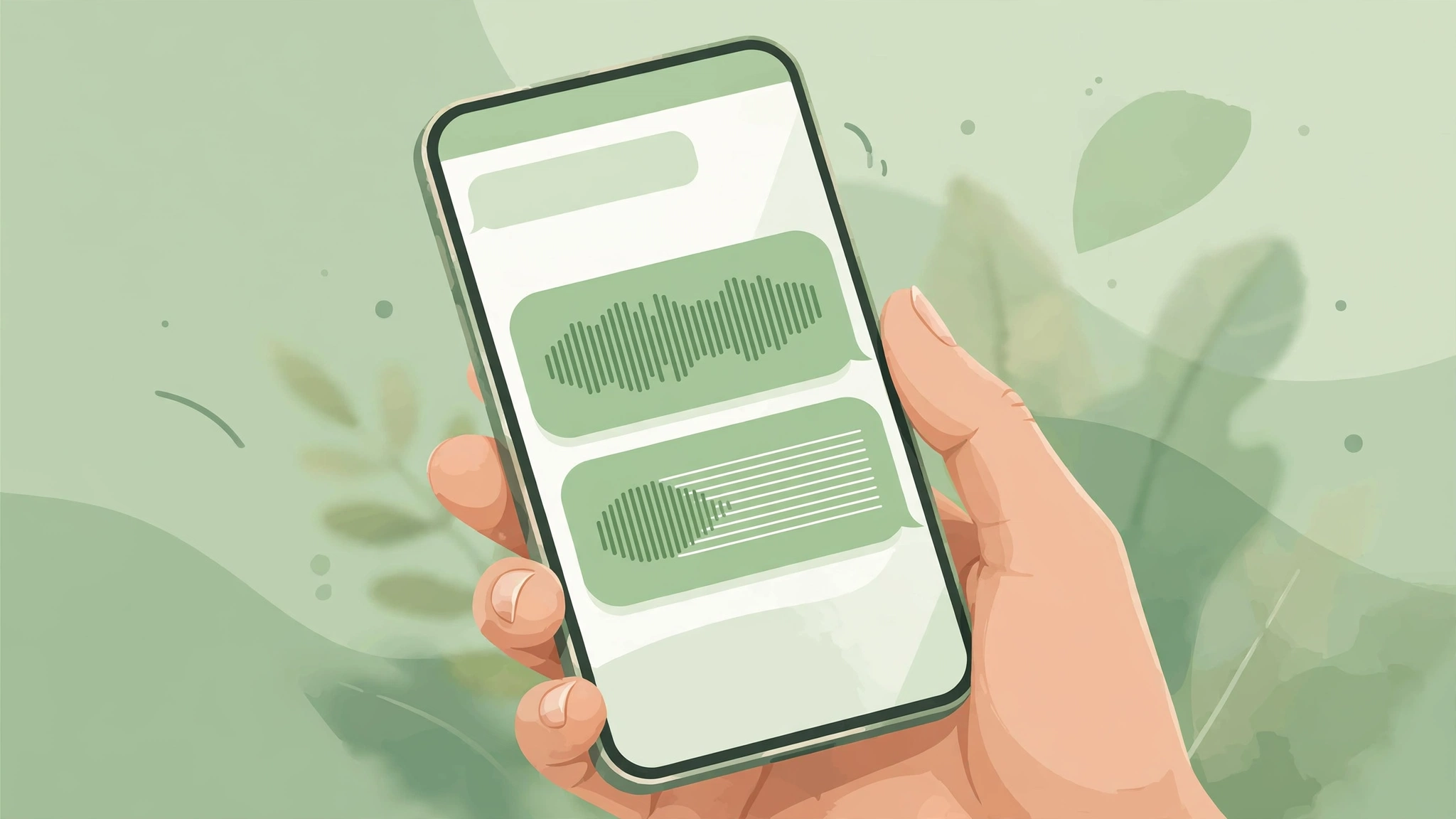
WhatsApp now includes its own transcription feature. It converts voice messages to text right inside the chat, no third-party app needed.
How to enable it:
- Open WhatsApp → Settings → Chats.
- Turn on Voice message transcripts.
- Choose your transcript language and download the language pack when prompted (a one-time download).
How to use it:
- Open any chat with a voice message.
- Long-press the voice message (or tap the small transcript icon beneath it, depending on your version).
- Tap Transcribe. The text appears below the voice message bubble.
Limitations to know:
- It works on newer versions of WhatsApp only, update the app first if you don’t see the option.
- Supported languages are still limited compared to dedicated transcription services. If your language pack isn’t available, use Method 2 or 3 below.
- Very long voice notes may be cut off; the feature is designed for typical message lengths.
- Transcription happens on your device, which is good for privacy (more on that below).
If this method works on your phone, stop here, it’s the fastest option by far.
Method 2: Your Phone’s Built-In Live Captions
Both major mobile operating systems can caption any audio playing on your device, including WhatsApp voice notes.
On Android, Live Caption:
- Go to Settings → Accessibility → Live Caption and turn it on.
- Play the WhatsApp voice message.
- A caption box appears showing the speech as text in real time.
- You can drag the caption box around the screen and tap it to expand.
Live Caption works offline, supports several major languages, and also captions videos, podcasts, and phone calls. On Pixel phones it’s the most polished; Samsung and other manufacturers include it too, sometimes under Sound or Accessibility settings.
On iPhone, Live Captions:
- Go to Settings → Accessibility → Live Captions (available on newer iOS versions) and turn it on.
- Play the voice message; system-generated captions appear on screen.
The catch with live captions: the text disappears when the caption box closes. If you need to keep the transcript, screenshot it or copy it immediately.
Method 3: Dedicated Transcription Apps
If you transcribe voice notes regularly, a dedicated app is worth installing. These apps typically offer better accuracy and let you save, search, and share transcripts.
On Android:
- Apps like Transcriber for WhatsApp add a share option directly to voice messages. Long-press the voice note → Share → choose the transcriber app → get text in seconds.
- Generic audio-to-text apps also work: save the voice note and open it in the app.
On iPhone:
- iOS is more restrictive about accessing WhatsApp audio directly, so the usual flow is: forward or save the voice message to Files, then open it in a transcription app like Otter.ai or a dedicated audio-to-text converter.
- Alternatively, use the Shortcuts app with a transcription shortcut, several free community shortcuts convert audio files to text using Apple’s on-device speech recognition.
What to look for in a transcription app: on-device processing (better privacy), support for your language, and the ability to export or copy text. Avoid apps that demand broad permissions unrelated to transcription.
Method 4: Transcription Chatbots (Fastest for One-Offs)
Several chatbots can transcribe audio you forward to them:
- Save or forward the WhatsApp voice message to the bot’s chat (some bots have their own WhatsApp number you message directly).
- The bot replies with the transcribed text, usually within a minute.
This is convenient, but think about privacy: you’re sending someone’s voice to a third-party server. Fine for a public lecture clip; not appropriate for confidential work discussions or personal messages. Read the bot’s privacy policy before using it for anything sensitive. For best practices on keeping transcripts secure, see our transcription file security guide.
Method 5: The Desktop Method (Best for Long or Important Voice Notes)
For long voice notes, poor audio quality, or transcripts you need to keep and edit, do it on a computer:
- Get the audio file. On WhatsApp Web or Desktop, hover over the voice message, click the download arrow, and save the .opus/.ogg file. On your phone, you can also forward the voice note to yourself via email.
- Upload it to a transcription service:
- Otter.ai, upload the audio, get a transcript with speaker labels and an automatic summary. The free plan covers a generous monthly allowance.
- Descript, upload and get an editable transcript; correct errors like editing a document, then export clean text.
- Rev, for maximum accuracy (legal, medical, or professional use), Rev’s human transcriptionists deliver around 99% accuracy for a per-minute fee.
- Copy or export the finished text.
This method takes a few minutes instead of a few seconds, but the accuracy, especially after light editing, is dramatically better than any on-device quick transcript.
Tips for More Accurate Transcripts
Whichever method you use, these habits improve results:
- Match the language setting to the language actually spoken. A transcript set to English processing Spanish audio produces garbage.
- Reduce background noise. If you’re the one sending voice notes people will transcribe, record in a quiet room and hold the phone close.
- Speak in complete thoughts. Transcription engines handle natural pauses well but mangle rapid-fire fragments.
- Check names and numbers. Speech-to-text routinely butchers proper nouns and confuses similar numbers (“fifteen” vs. “fifty”). Always verify these manually.
- For mixed-language messages, on-device tools often struggle. The desktop method with a service like Descript, where you can edit afterward, handles code-switching better.
Privacy: Where Does Your Voice Go?
Not all transcription methods treat your audio the same way:
- WhatsApp’s built-in transcripts and phone live captions process audio on your device. The voice note never leaves your phone for transcription purposes. This is the most private option.
- Third-party apps vary. Check whether transcription happens on-device or on the company’s servers, and whether they retain your audio.
- Chatbots and cloud services upload your audio to their servers by definition. Check retention policies, reputable services delete audio after processing, but not all do.
- Rule of thumb: if the voice note contains anything you wouldn’t post publicly, work confidences, personal matters, kids’ voices, stick to on-device methods.
FAQ
Does WhatsApp automatically transcribe voice messages? Not automatically, you need to enable Voice message transcripts in Settings → Chats, then tap Transcribe on individual messages. It doesn’t transcribe every message unprompted.
Why don’t I see the transcribe option in WhatsApp? You likely need to update WhatsApp to the latest version, and the feature must be available in your region and language. If it’s still missing, use your phone’s Live Caption feature instead.
Can I transcribe a WhatsApp voice message without listening to it? Yes, that’s the entire point. WhatsApp’s built-in transcription, live captions, and third-party apps all convert the audio to text without you playing it aloud. Use earphones or a private space if you do need to play it.
How accurate is WhatsApp’s voice message transcription? Good for clear speech in supported languages, roughly comparable to phone voice dictation. It struggles with heavy accents, background noise, overlapping speakers, and technical vocabulary. For important content, run it through Otter.ai or Descript on desktop and edit the result.
Can I transcribe WhatsApp call recordings the same way? Call recordings are just audio files, so yes, save the recording and use Method 5 (upload to Otter.ai, Descript, or Rev). Note that recording calls has legal implications in many places; make sure everyone on the call consents.
Do transcription apps work for voice notes in other languages? Most major apps support dozens of languages, but accuracy varies. WhatsApp’s built-in feature supports a smaller set. For less-common languages, the desktop method with manual editing gives the best results.
Conclusion
For most people, most of the time, the answer is simple: enable WhatsApp’s built-in voice message transcripts and tap Transcribe when you need text. If your language isn’t supported or you need to keep the transcript, your phone’s Live Caption feature is the next-best free option. And when accuracy truly matters, work discussions, interviews, anything you’ll quote, export the audio and run it through Otter.ai, Descript, or Rev on your desktop. Pick the method that matches the sensitivity of the message and how much accuracy you need. If you also use Discord for voice chat, see our guide to transcribing Discord voice chat.
Frequently Asked Questions
What affects transcription accuracy the most?
Audio quality matters more than anything else. Clear speech, low background noise, and one speaker at a time produce the best transcripts.
Is my audio data kept private by these tools?
Reputable tools encrypt uploads and let you delete your files. Always check the privacy policy before uploading sensitive recordings.
Can I edit the transcript after it is generated?
Yes. Every major transcription tool includes an editor for fixing names, terms, and punctuation before you export or share.
When should I use manual transcription instead of AI?
Use manual transcription for legal, medical, or publishable quotes where near-perfect accuracy matters more than speed.
What is the most accurate way to handle how to Transcribe WhatsApp Voice Messages to Text?
A mix of AI transcription plus a quick manual review gives the best results. Pure auto-transcription reaches roughly 85 to 95 percent accuracy on clear audio.
What do I do with a transcribed voice note?
Once a voice note is transcribed, paste the text into your notes app with the date and the sender’s name, so you can search it later. For work chats, a transcribed voice note also works as a written record of what was agreed, which is easier to quote than replaying the audio.